
Run the service
Bible and Scripture
Find any passage by reference, words or meaning, keep cues, and get back to earlier passages in one click.
The Bible workspace is where Scripture is found, previewed and sent to the screens. It works the same whether you type, click a cue, or let Hands-free do it.
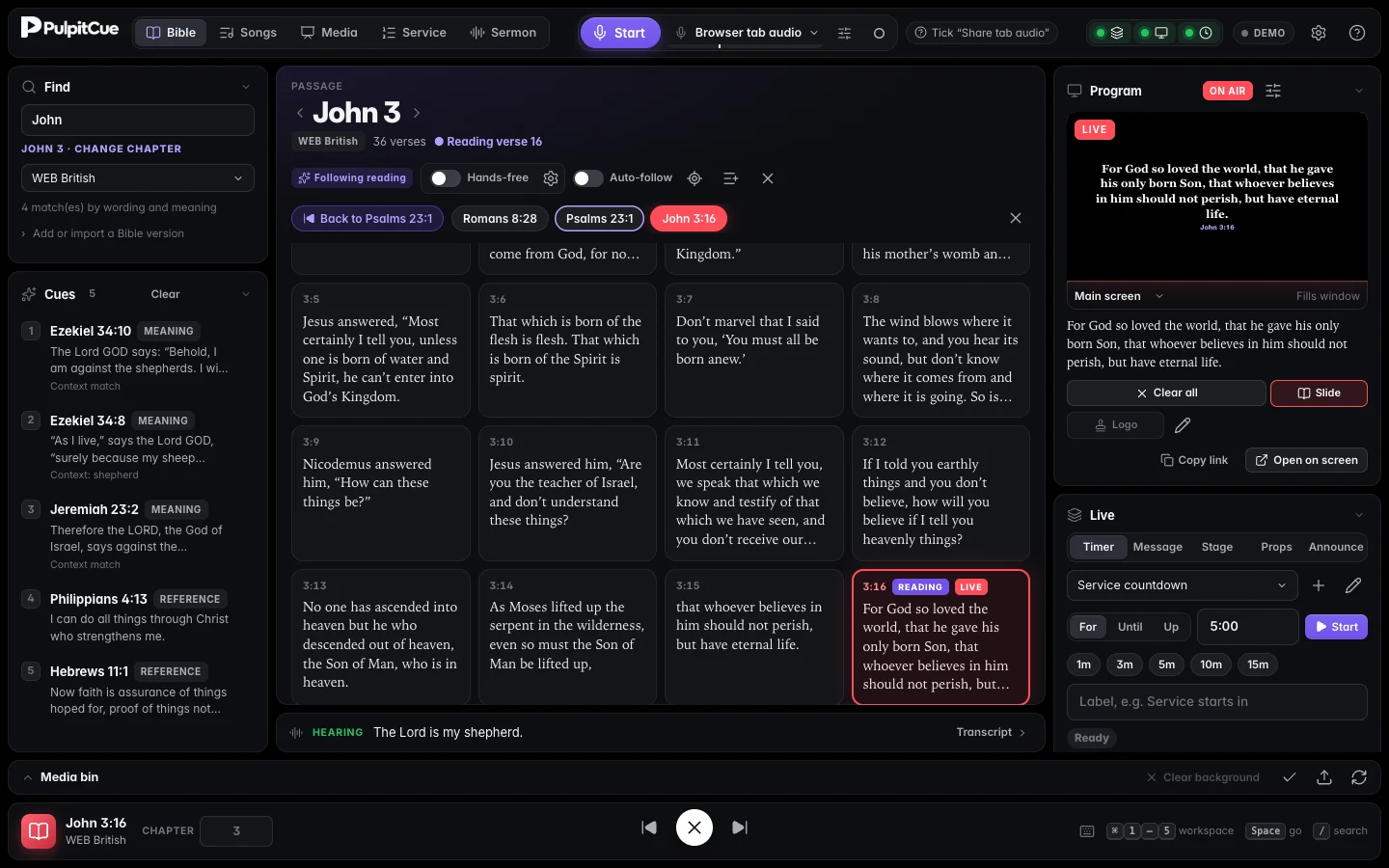 The Bible workspace: Find and Cues on the left, the chapter in the middle, Program and Live on the right.
Find a passage
There is one search box, labelled Find. It does three jobs, and you never have to say which.
By reference
Type a book, a chapter or a verse. Suggestions appear as you type, and short forms work: gen, 1 sam, jn 3:16, ps 23.
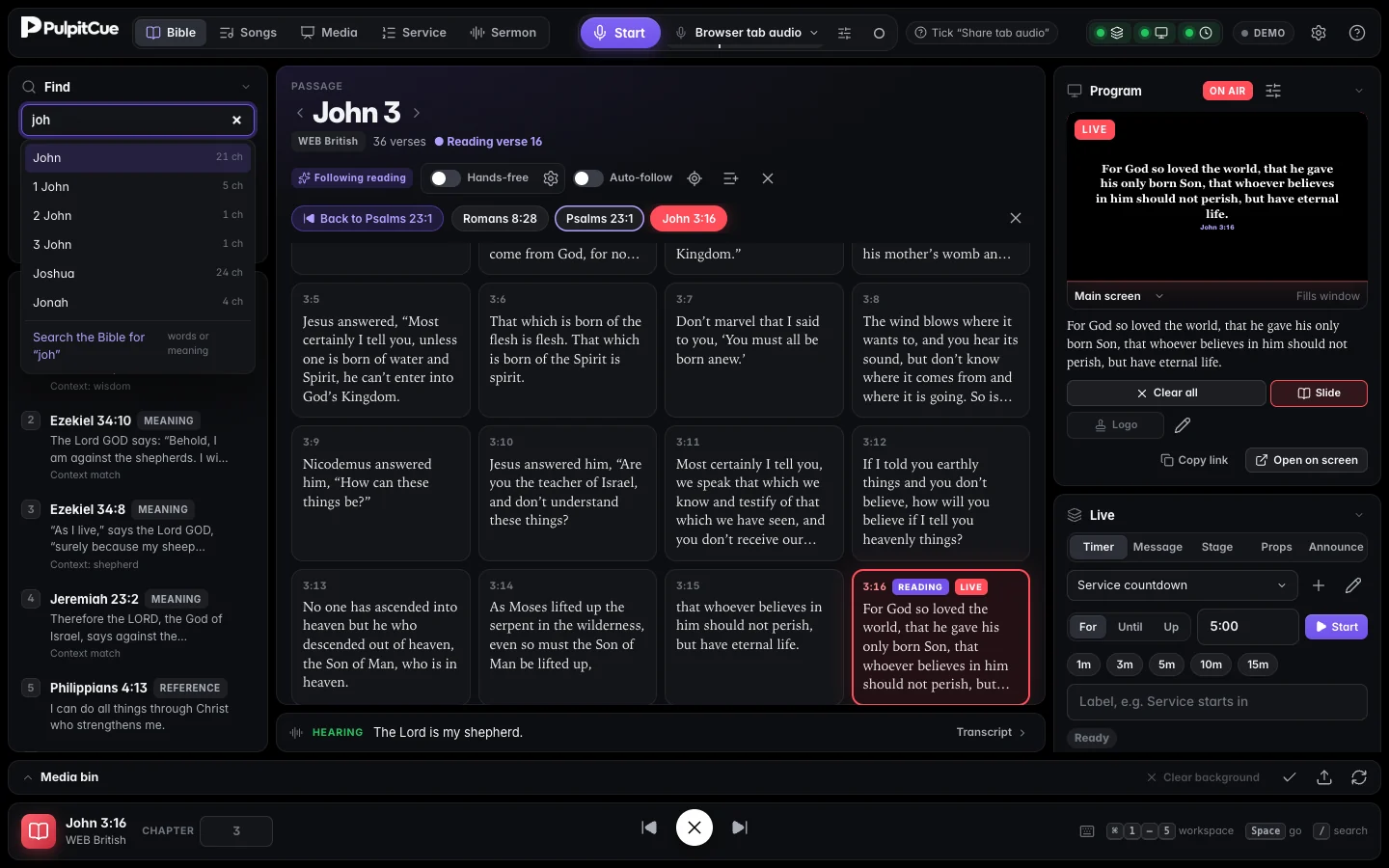 Type a few letters and pick the book. The last suggestion searches the Bible for what you typed.
Enterpicks the highlighted suggestion. A book opens its chapter grid. A typed chapter opens that chapter. A typed verse (john 3:16) goes on screen.- Ranges work too:
romans 8:28-30.
By words from the verse
Type a phrase such as for God so loved the world and choose Search the Bible for “…”, the last suggestion. When nothing you typed is a book name, Enter does this for you. Word-for-word matches go to the top.
By meaning
You do not need the exact words. Describe what the verse is about and PulpitCue finds the closest verses in meaning.
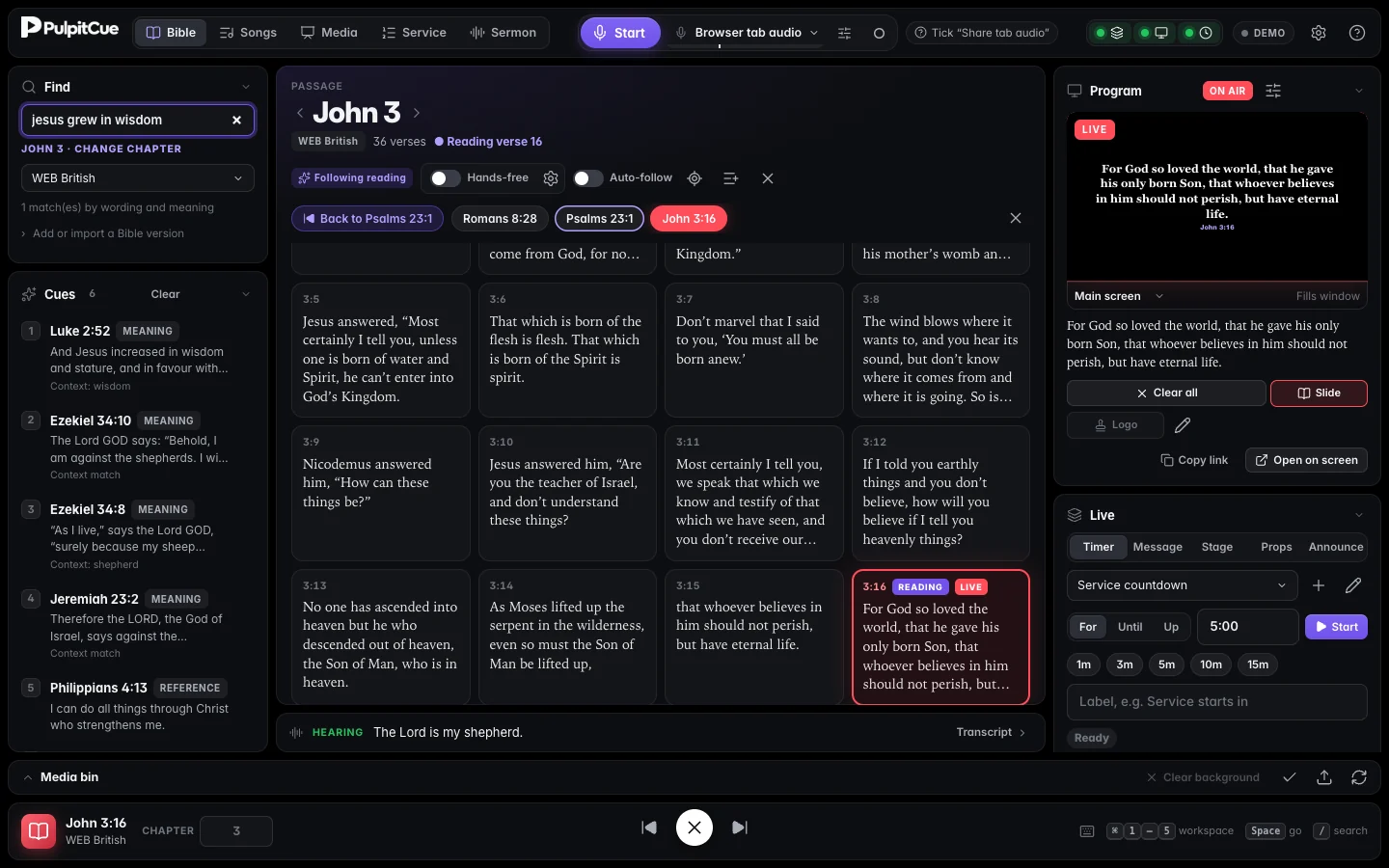 “jesus grew in wisdom” finds Luke 2:52, tagged MEANING, even though the verse says “increased in wisdom and stature”.
| You type | You get |
|---|---|
jesus grew in wisdom | Luke 2:52 |
love your enemies | Matthew 5:44 |
Results are previews. Nothing is shown to the audience until you choose it. Meaning search needs the full Bible installed and the models from the setup guide.
Cues
Cues are the Scripture PulpitCue has found while listening or searching. Each has a tag so you can judge how far to trust it:
| Tag | What it means |
|---|---|
| REFERENCE | A reference the preacher said (“Philippians four thirteen”), or one you searched for. POSSIBLE REF means a book name was misheard and was corrected from the numbers beside it, so check it. |
| QUOTE | The preacher quoted words that match a verse. POSSIBLE QUOTE is a weaker match. |
| CONTEXT | The preacher paraphrased or retold something and the surrounding words matched this verse. The evidence is shown under it. |
| MEANING | A search by meaning. |
| DRAFT MATCH | A very early guess from half a sentence. It may change or vanish when the sentence finishes. |
- Click a cue to put it on screen, or press
Ctrl+1to5for the first five. - Hover a cue and press × to dismiss it. Clear empties the list.
- Cues tidy themselves so the list stays useful: a cue taken from an early draft that the finished sentence never confirms disappears after 45 seconds, every cue goes after 5 minutes, and showing a passage removes the cues it covers. Change these in Settings → Cues.
- The list gets the whole height of the left column and scrolls, so cues are always visible.
Careful
Cues are suggestions based on a machine transcript. A misheard word can produce a wrong cue. Read the verse in Program before the audience does.
The passage view
The middle column shows the open chapter as a grid of verses.
- Click a verse to put it on screen. Shift-click another verse in the same chapter to extend it into a range (up to 13 verses).
- The verse on screen glows red. The verse the preacher is reading glows purple (a READING tag).
Spaceshows the verse being read.←and→step to the previous or next verse.Escclears the screen.- The arrows beside the chapter title change chapter. The chapter box in the bottom bar jumps to a chapter number.
- A passage longer than the screen is split into slides automatically; Text per slide in Screens controls how much goes on each one.
- A slim Hearing strip below the passage shows what is being heard right now. Transcript at its right opens the full transcript.
Going back to earlier passages
Preachers bounce between texts. The trail, the row of pills above the verses, remembers every passage shown since captions started, in the order it was first shown. The order never shuffles, so a passage the preacher keeps returning to stays where you expect it.
The trail. The passage on screen is red; the one Back would return to has an outline.
- Click a pill to put that passage back on screen.
- Shift-click a pill to open its chapter in the Bible view without showing it, to read ahead.
- Back (or the
Bkey) shows the passage shown before this one. Press it again to swap back, so bouncing between two passages is one key. - The trail holds 40 passages. It empties when captions start again, or with its × button.
- Every PulpitCue window and every paired remote sees the same trail.
Bible versions
Choose the edition under Find. Seven public-domain versions are included: WEB British, KJV, BSB, ASV, WEB, Darby and YLT. PulpitCue can also tell which of the installed versions the preacher seems to be reading, and offers to switch.
To add a version your church is licensed to use (NIV, ESV, NKJV…), choose Add or import a Bible version. Give it a text file with one verse per line: the reference, a tab, then the text.
John 3:16<TAB>For God so loved the world that he gave his one and only Son…
John 3:17<TAB>For God did not send his Son into the world to condemn…
You confirm that your church holds the rights. The text stays on that computer and is never uploaded.
Auto-follow
Auto-follow, in the passage header, keeps the Bible view on the chapter being read so you do not have to chase it. It only opens chapters in the preview; it does not change what the audience sees. It needs captions running to turn on, and it can always be turned off. Hands-free is the control that changes the screen: see the next page.
Scripture on screen: how it looks
Each screen has its own Scripture style (font, size, box, accent bar, position): see Styling each screen. You can also give Bible verses their own background: right-click a picture or video in the media bin and choose Use for Bible verses.
Still stuck?
Tell us what you were trying to do and we will help.