
Start here
Getting started
Install PulpitCue, work through the setup guide and put your first verse on screen.
PulpitCue runs on macOS and Windows. The table below gives the Mac requirements; the Windows note under it covers the Windows installer.
What you need
| Minimum | Recommended | |
|---|---|---|
| Mac | Apple silicon (M1 or later), macOS 12 | M1 Pro / M2 or later, macOS 14 or later |
| Memory | 8 GB | 16 GB |
| Free disk space | 6 GB | 10 GB |
| Internet | Once, during setup (about 1.7 GB of speech and Bible-matching models). After that PulpitCue works offline. | |
| Audio | The Mac’s microphone, for testing | A dedicated speech mix from the sound desk: a USB audio interface or the mixer’s USB output |
Not supported
Intel Macs are not supported: speech recognition is too slow on them for live use.
Windows
There is also a Windows installer. It installs the Microsoft Visual C++ runtime that the speech engine needs, and picks a speech engine size to suit the PC (see Memory and speed). Windows may show a SmartScreen warning for a build that is not code-signed: choose More info, then Run anyway. Where this guide says
⌘on a Mac, useAlton Windows for the workspace keys.
Install
- Open PulpitCue-1.0.0-macOS-arm64.dmg.
- Drag PulpitCue onto the Applications folder, then eject the disk image.
- Open PulpitCue from Applications. A build that is not signed shows “PulpitCue can’t be opened because Apple cannot check it”: click Done, open System Settings → Privacy & Security, scroll down and click Open Anyway. You only do this once.
- Allow the Microphone (so it can hear the sermon) and Local network (so OBS and other screens can show Scripture). Audio never leaves the computer.
The setup guide
The first time you open PulpitCue, a setup guide walks you through six steps. You can reopen it at any time with the ? button at the top right.
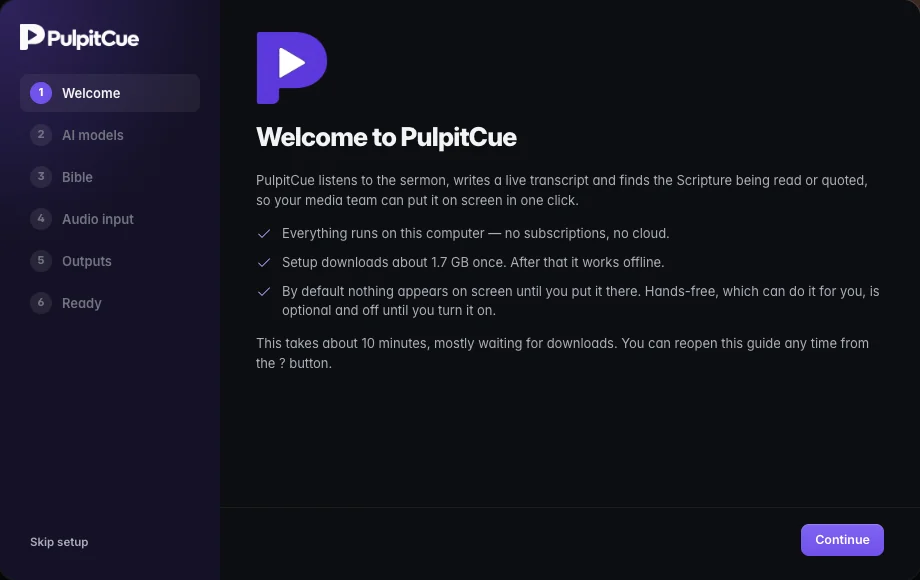 The setup guide.
- Welcome. What PulpitCue does and what it will download.
- AI models. Click Download models (about 1.7 GB). Keep the computer online until all three say Ready. On a Windows PC without a graphics card the guide may choose a lighter speech engine.
- Bible. Seven public-domain Bibles are already included: WEB British, KJV, BSB, ASV, WEB, Darby and YLT.
- Audio input. Choose the input that carries the pulpit microphone and press Test. Speak, and the bar should move into the green.
- Outputs. Copy the livestream link for OBS, and/or open the main-screen output on the projector. See Screens and outputs.
- Ready. A one-page summary of Sunday use.
Show your first verse
- Open the Bible workspace (
⌘1). - Click the box under Find, type
john 3:16and pressEnter. The verse goes on every screen that shows Scripture. - Check the Program panel on the right: it shows exactly what the audience sees, with a red ON AIR tag.
- Press
Escto clear the screen.
Tip
Practise before Sunday: you can show verses, songs and slides without pressing Start. Start is only needed for listening to the preacher.
Start listening to a sermon
- Check the input in the top bar is the pulpit microphone and that its meter moves when someone speaks.
- Press Start. The first start loads the speech model, which can take up to a minute; the status says Loading model, then Live.
- As the preacher names Scripture, cues appear on the left. Click one to put it on screen.
- Press Stop at the end. The transcript is saved.
Where your files live
| What | Where (Mac) |
|---|---|
| Settings, Bibles, songs, slides, saved sermons and the log | ~/Library/Application Support/PulpitCue |
| AI models | ~/.cache/huggingface |
Back up the first folder to keep everything, or use Backup and sharing to export files you can import on another computer. To update, download the new installer and replace the old app: your songs, slides, sermons and models are kept.
Uninstall
Quit PulpitCue and drag it to the Bin. Optionally delete the PulpitCue data folder above and the three PulpitCue models in ~/.cache/huggingface/hub.
Still stuck?
Tell us what you were trying to do and we will help.