
Screens and control
Remote control from a phone or tablet
Pair a device with a code and run the service from a web page.
A phone, tablet or laptop on the same network can run the service from a web page. It is for the media desk member who is not sitting at the computer, or for a pastor who wants to step through their own slides. A dedicated app is planned; until then this works in any browser.
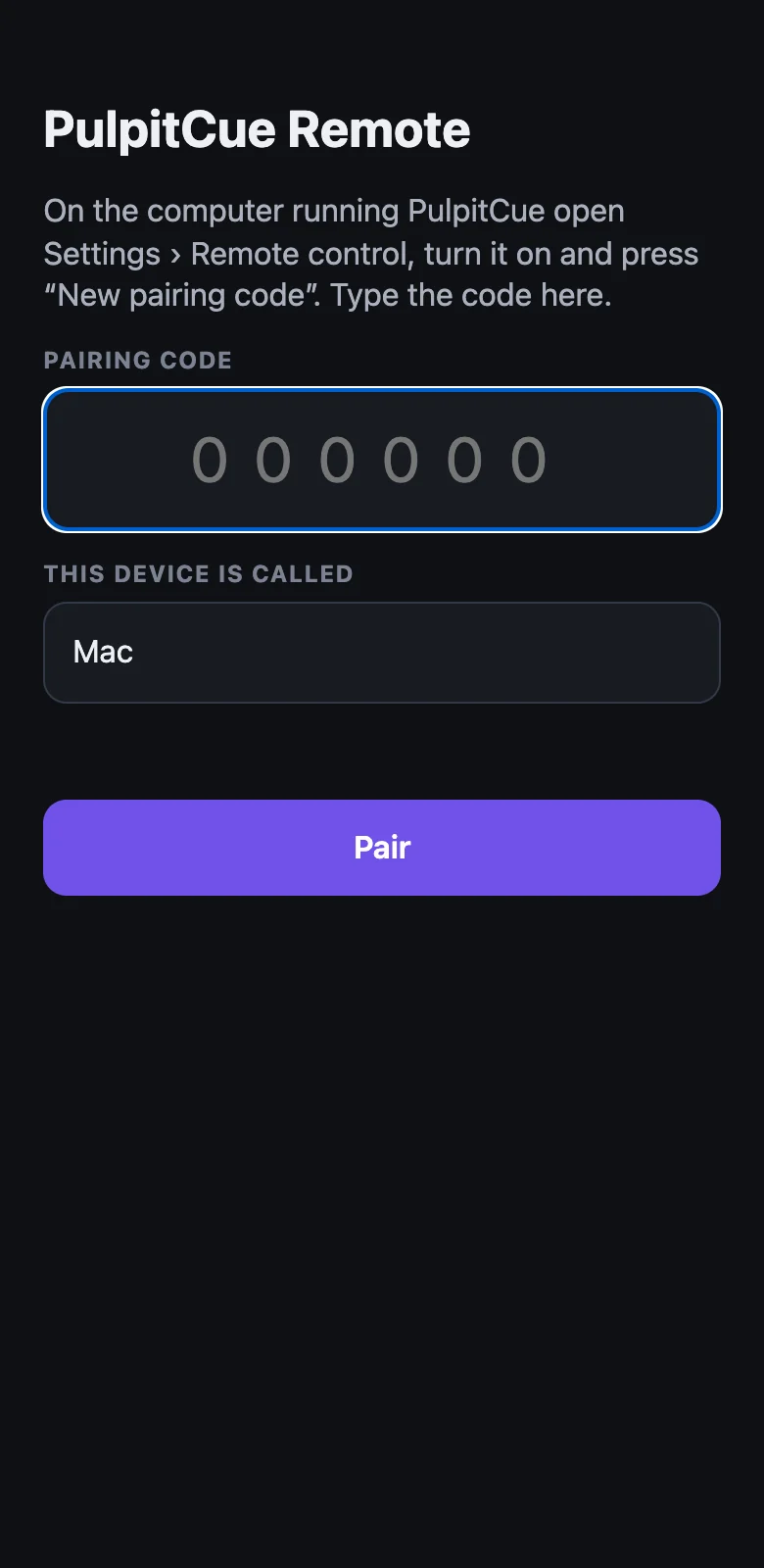 The pairing page.
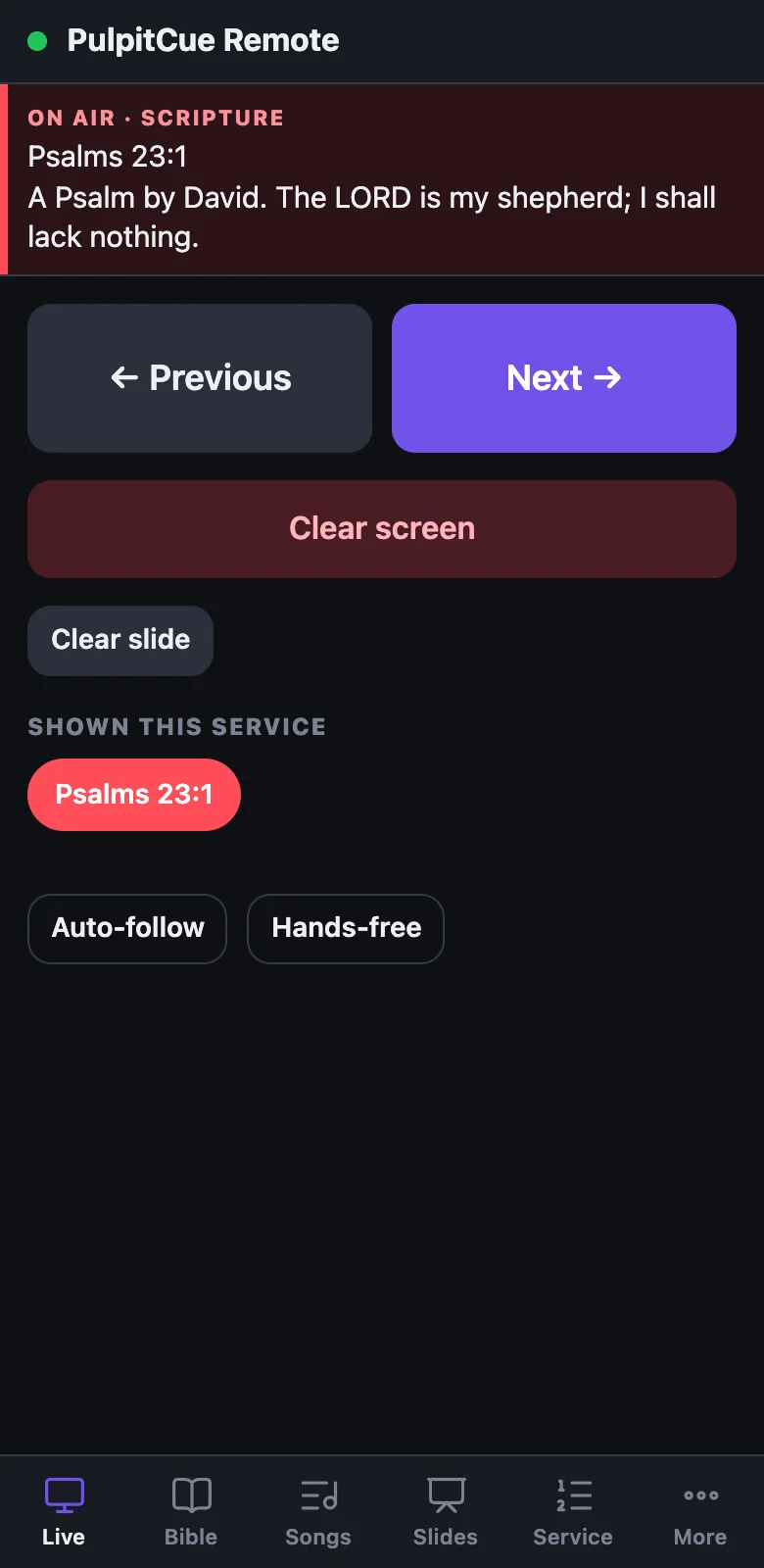 The Live tab.
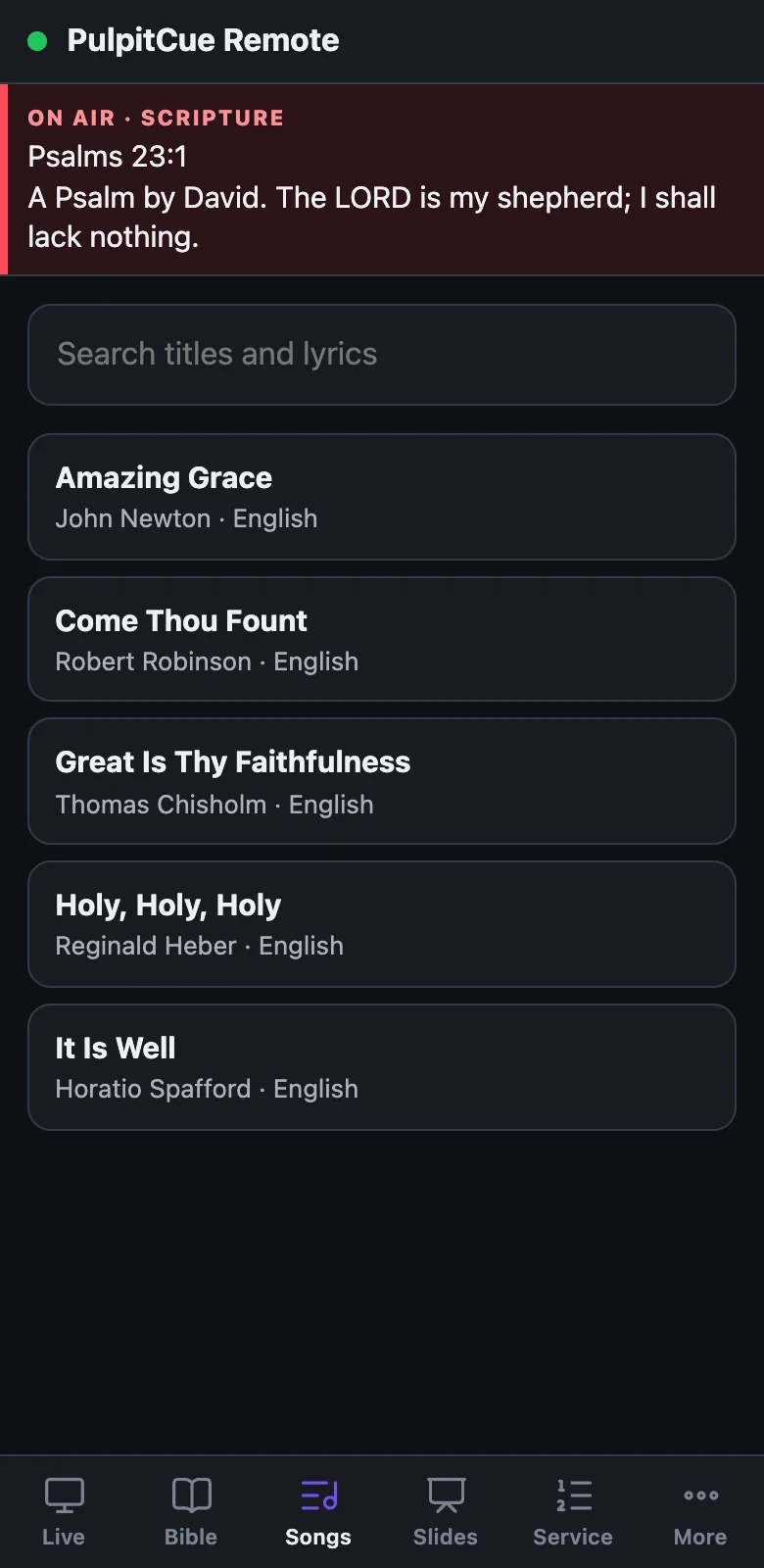 Songs.
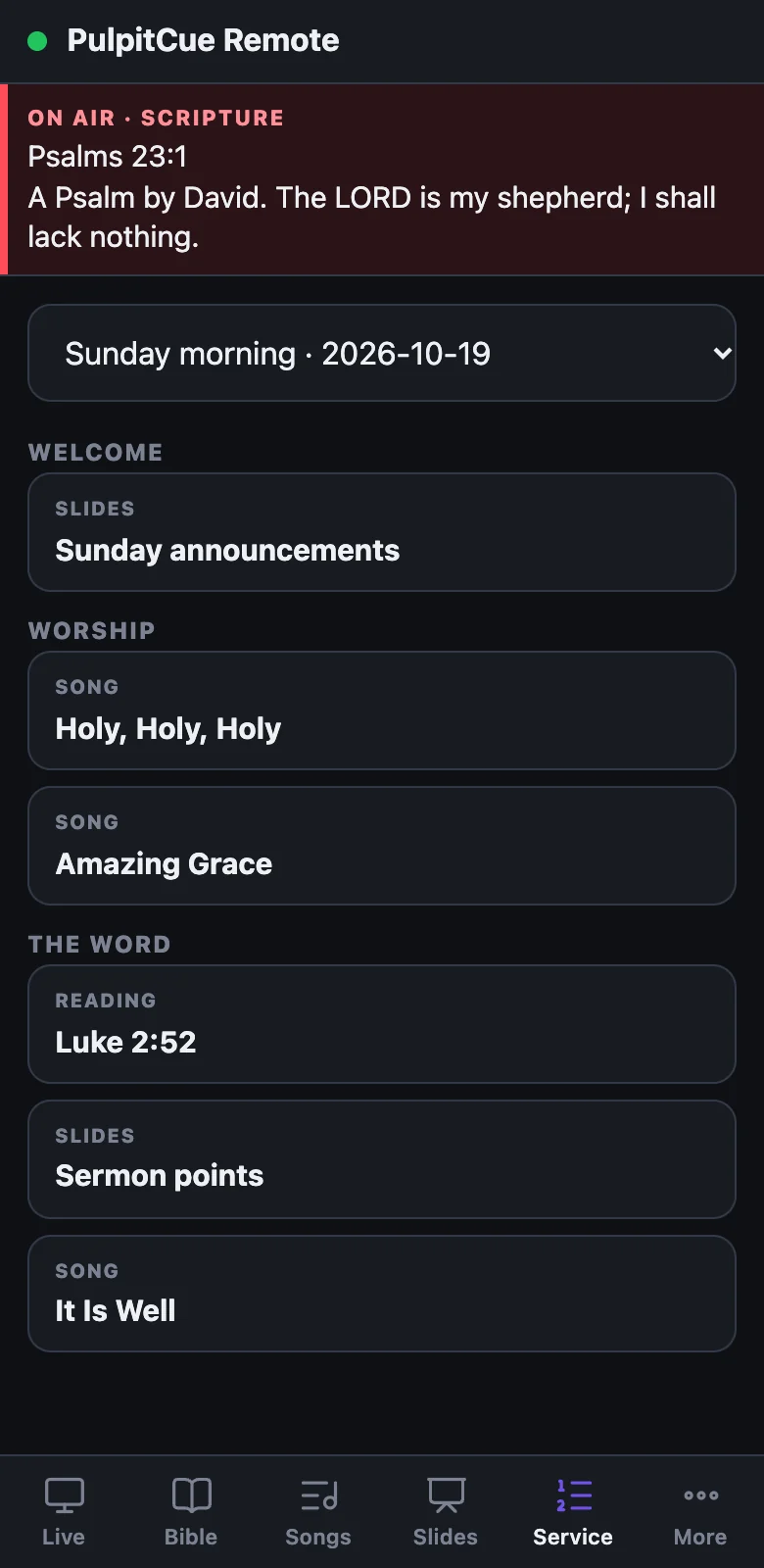 The service.
Turn it on and pair a device
Remote control is off until you turn it on.
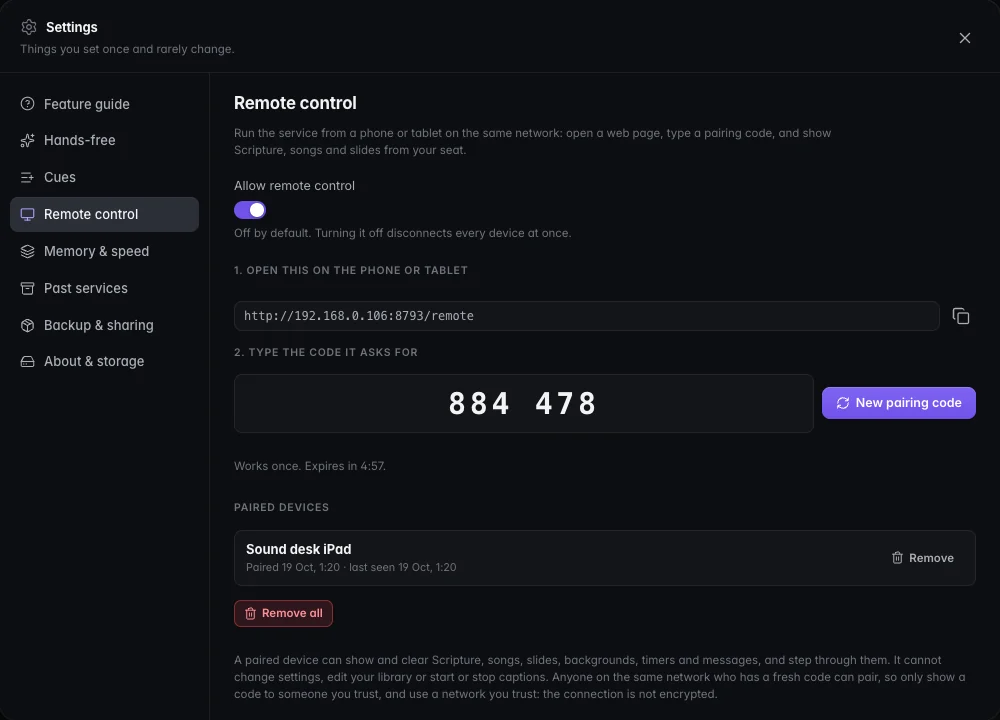 Settings → Remote control with a pairing code and one paired device.
- On the PulpitCue computer open Settings → Remote control and turn on Allow remote control.
- On the phone or tablet, open the address shown, which looks like
http://192.168.1.20:8765/remote. The device must be on the same network as the computer. - Press New pairing code on the computer. It shows six digits that work once and expire after five minutes.
- Type the code on the device, give the device a name, and press Pair.
The device stays paired, across restarts, until you press Remove beside it (or Remove all). Turning remote control off disconnects every device at once.
What the page does
The page has six tabs along the bottom.
| Tab | What you can do |
|---|---|
| Live | See what is on screen. Previous and Next. Clear screen, Clear slide, Clear background and one button per layer showing. Back to the last passage and the trail of passages shown this service. Scripture cues (tap to show, × to dismiss). Video pause and restart. Auto-follow and Hands-free. |
| Bible | Find by reference, words or meaning. Switch version, open a chapter, step chapters and tap a verse to show it. |
| Songs | Search, open a song and tap a slide. |
| Slides | Presentations and announcement loops. Tap a slide, and pause or resume auto-advance. |
| Service | The planned running order. Tap an item to take it live. |
| More | The service countdown (5, 10 or 15 minutes, pause, +1 minute, hide), a stage-monitor message, audience messages with their fields, props, announcement loops and backgrounds. |
Whatever the remote changes appears at once on the computer and on every other paired device. If the Wi-Fi drops, the page reconnects by itself.
What it cannot do
A paired device can only send a fixed list of commands: showing, stepping and clearing content, timers, messages, props, loops, backgrounds and the logo. It cannot change settings or screens, edit songs, slides or services, install Bibles, or start or stop captions, and it never receives the transcript or any file paths. Turning remote control on, creating codes and removing devices only works on the PulpitCue computer itself.
Keeping it safe
- Five wrong guesses throw a code away, and one network address can only try a handful of times a minute.
- The device keeps a long random token; the computer keeps only a fingerprint of it.
- Remove devices you no longer use, and turn the feature off when it is not needed.
The connection is not encrypted
It uses plain HTTP on your own network. Use a network you trust, and only show a pairing code to someone you trust, because anyone on the network who gets a fresh code can pair. For access from outside the building, use a VPN rather than opening a port on your router.
Still stuck?
Tell us what you were trying to do and we will help.