
Run the service
Sermon transcript and notes
A live transcript, your own notes, recordings and AI-written summaries after the service.
Every time you press Start, PulpitCue saves a new sermon: a timestamped transcript, your own notes, and (only if you turn it on) the audio. After the service it can turn the transcript into notes and slides.
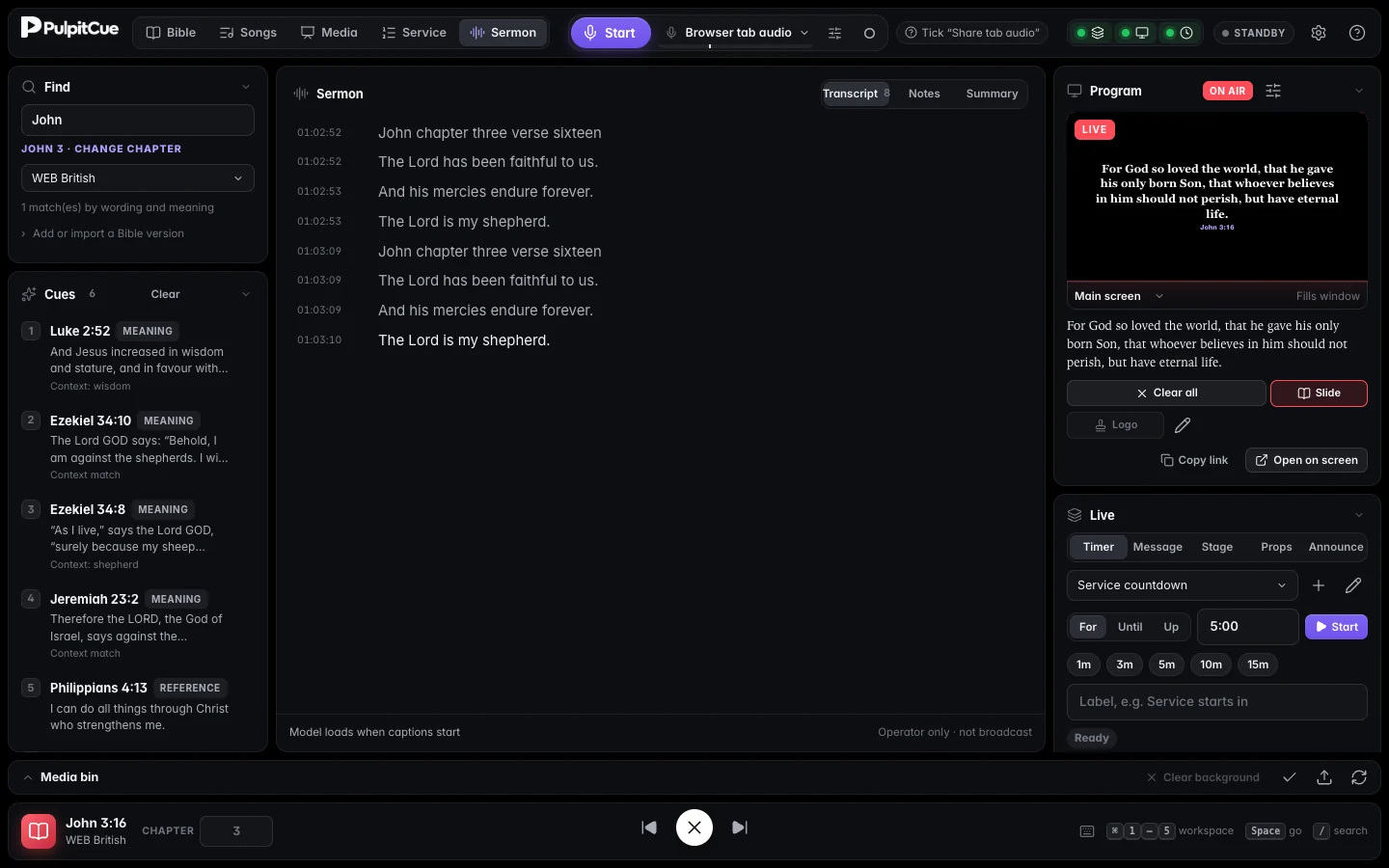 The Sermon workspace gives the whole middle of the window to the transcript, notes, summary and saved services.
Transcript
Open the Sermon workspace (⌘2). Transcript shows finished lines with timestamps, plus the current draft. Find and Cues stay on the left so cues are still in view while you read. In the Bible workspace, the slim Hearing strip under the passage shows the words being heard right now.
- Captions are saved whether or not the screens are showing them.
- Disconnects, processing failures and skipped backlog audio are marked as gaps. The archive cannot reconstruct speech that was never transcribed.
- Stop finishes the current sentence and waits up to 30 seconds for pending transcription.
- The transcript is shown on the operator window only. It is never broadcast to the screens.
Notes during the sermon
The Notes tab is for your own notes. Type a point and press Enter; edit any note afterwards. Show puts a note on screen as a slide in a Sermon notes presentation. No AI runs while captions are on, so the speech engine has the computer to itself.
Record the audio (optional)
The Rec button in the capture dock is off by default. While it is on, everything the captions input hears from Start to Stop is saved as a WAV file in your data folder: 16-bit mono at 24 kHz, about 170 MB an hour. You can switch Rec off and on during a sermon and it continues the same file. If the disk fills up, recording stops and captions carry on. The file is updated every few seconds, so a crash loses at most the last few seconds.
Summary: AI notes after the service
AI notes are written only when you ask, after the service, so they never compete with the live service for the computer.
- Stop captions, then open Summary.
- First time only: press Download to fetch the notes model (a one-time 6.2 GB download, offered right there).
- Choose the sermon and press Summarise. A full sermon takes a few minutes.
PulpitCue writes a title, theme, main text and a short summary, then notes that follow the preacher’s own sections and lists (“number one…”), in the preacher’s words, plus the Scripture actually put on screen. Every line is checked against the transcript: lines that do not closely match what was said, and Bible references that were not spoken or shown, are dropped.
From a finished summary you can:
- Copy it or download it as Markdown, together with your live notes.
- Put a Title slide (title, theme, main text) on screen.
- Make slides: the title slide, then each section with up to four items per slide, sized for the main screen. They appear in Media.
- Download the transcript as text, or the Audio (.wav) if you recorded, or Show in Finder (File Explorer on Windows).
Read before you share
The notes model works from a machine transcript and can misread names. Review the notes before sharing them. If captions are started while notes are being written, the notes stop at once and nothing is saved, so the live service always comes first.
Past services
The Past services tab of the Sermon workspace (also Workspace → Past Services in the menu bar) lists every saved sermon with its date, length, number of lines, notes and recording size. Open one to jump to its Summary, download its transcript or notes, or select several and delete just the recordings (frees disk, keeps the text) or the whole sessions. The session being captioned right now cannot be deleted. Sessions survive restarts, and a session interrupted by a crash is marked as interrupted.
Privacy and consent
Transcripts and recordings stay on the computer and are not deleted automatically. Back them up and keep them according to your church’s consent and retention policy.
Still stuck?
Tell us what you were trying to do and we will help.