
Screens and control
Screens and outputs
Livestream lower thirds, projectors, stage monitors and NDI, each with its own look.
PulpitCue can drive several screens at once and gives each its own look, so the livestream, the projector and the preacher’s monitor can all show something different from the same click.
The three starting outputs
| Output | Type | Typical use |
|---|---|---|
| Livestream lower third | Lower third (transparent) | OBS or vMix over the camera |
| Main screen | Full screen | Projector or in-house TV |
| Stage monitor | Stage | Confidence screen for the preacher: large text, the next verse or slide, a clock |
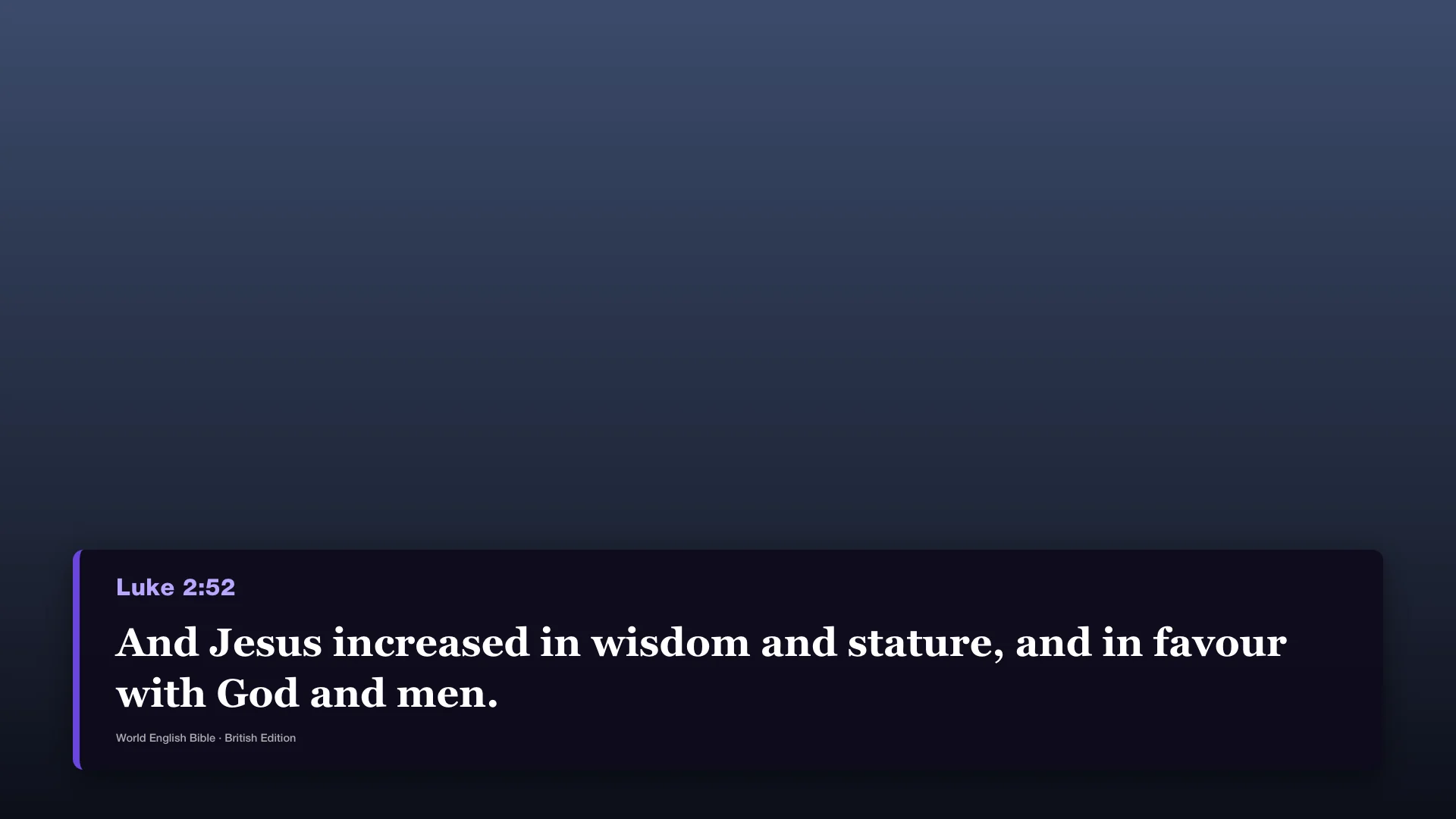 Lower third (shown here over a sample backdrop).
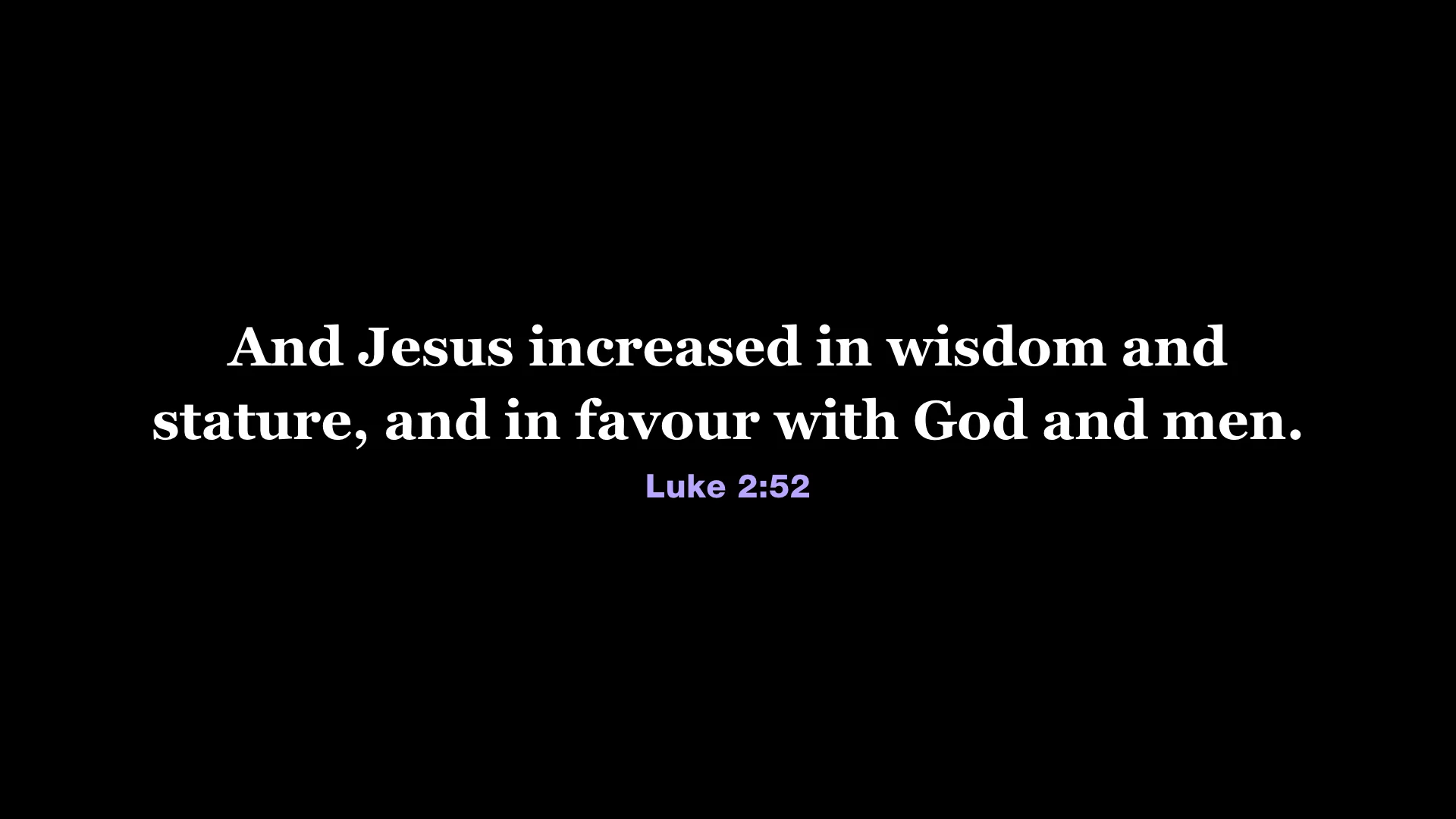 Main screen.
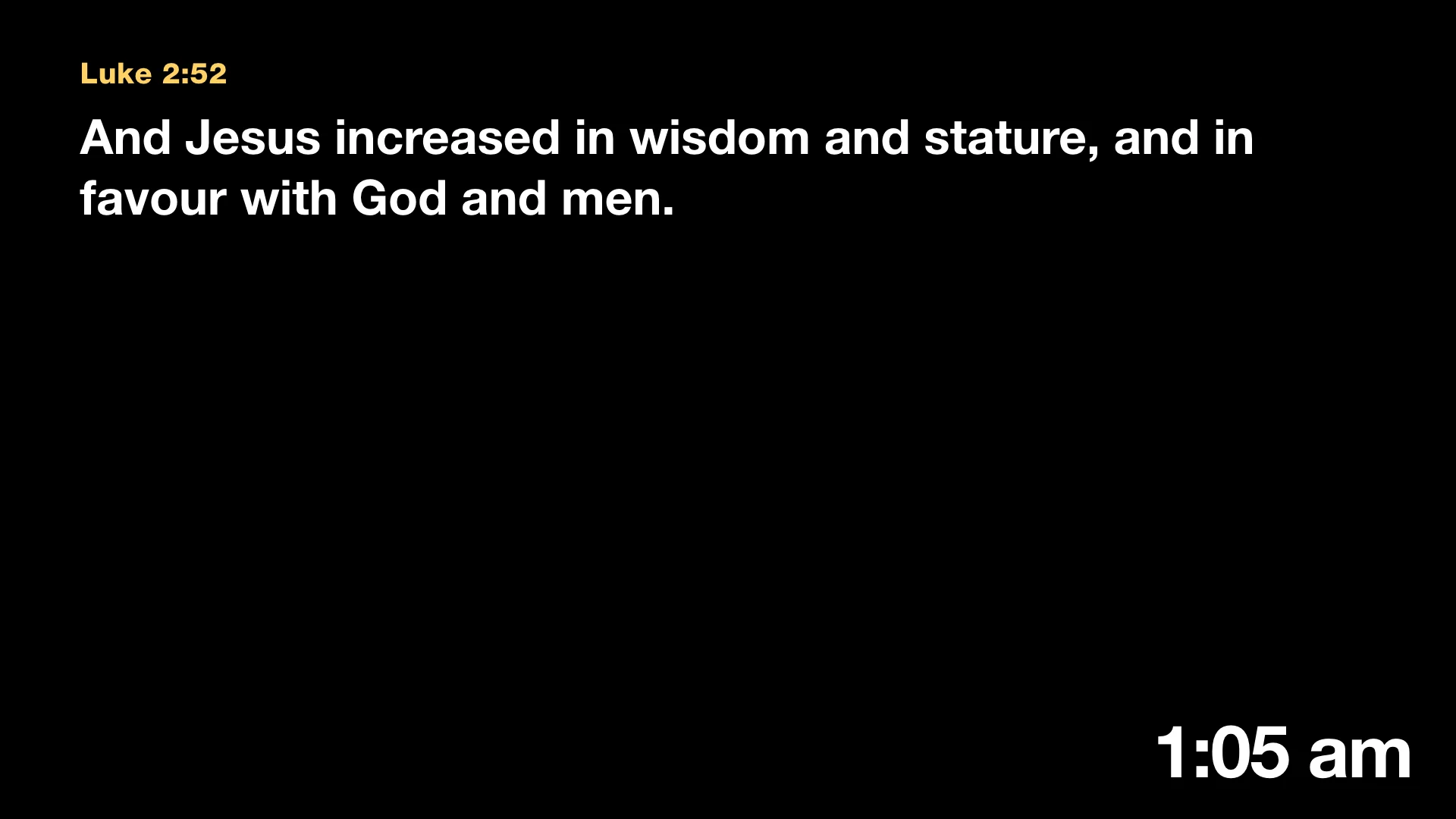 Stage monitor with the time.
Open the Screens settings
Click the gear on the Program panel, or choose Screens… in the menu bar (or Settings → About → Screens…). To change which screen the Program preview shows, use the menu above it.
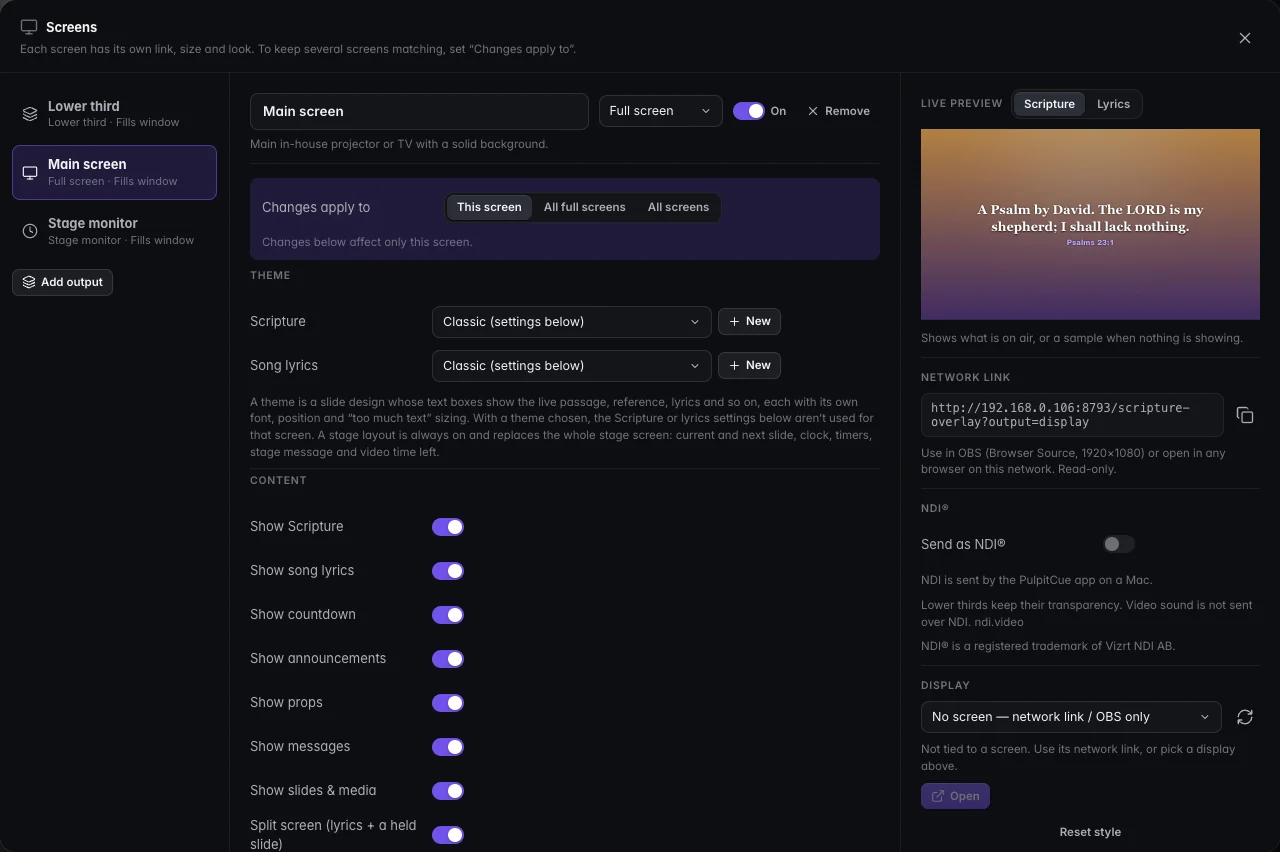 Screens: the outputs on the left, styling in the middle and a live preview on the right.
- Add output (up to 12). For example a second lower third for a different stream, or a foyer TV.
- Rename, switch off or remove an output.
- Changes apply to: This screen, All full screens or All screens, so you can style several at once.
- Reset style returns an output to its type’s defaults.
Connect OBS, vMix or Ecamm
- In PulpitCue, choose the output in the Program panel and press Copy link. It copies something like
http://192.168.1.20:8765/scripture-overlay?output=stream. - In OBS: Sources → + → Browser. Paste the link. Set width 1920 and height 1080. Tick Refresh browser when scene becomes active.
- Place the source above your camera. It is transparent until a verse is shown.
OBS can run on the same computer or on any computer on the same network.
Tip
Reserve a fixed IP address for the PulpitCue computer in your router (a DHCP reservation) so the OBS link never changes.
NDI (Mac app)
- Open Screens, choose the output and turn on Send as NDI®. Pick 25 fps (PAL countries) or 30 fps.
- In vMix, OBS with DistroAV, Wirecast or TriCaster, add an NDI source and pick YOUR-MAC (PulpitCue Lower third) (or whichever output).
- The first time, macOS asks to let PulpitCue find devices on your local network: click Allow.
Lower thirds keep their transparency over NDI. Frames are only drawn while a receiver is connected, so leaving it on costs nothing when nobody is watching. Screens shows each source’s network name, size, frame rate and number of receivers. Video sound is not sent over NDI. NDI output is available in the Mac app only. NDI® is a registered trademark of Vizrt NDI AB (ndi.video).
Projector, TV or stage monitor
- Connected to this computer. Choose the output in Program and press Open on screen, or pick a screen in Screens. Each output can be on its own screen at the same time. Close closes it. Set the projector to Extend, not Mirror, in your display settings.
- Another computer or smart TV. Copy that output’s network link from Screens and open it in the device’s browser. Press
Ffor full screen.
Styling each screen
Every output has full control over its look, with a live preview that shows either Scripture or Lyrics:
- Text. Any font installed on the computer (searchable, previewed in its own typeface), weight, italic, size, line height, letter spacing, colour, alignment, shadow and outline.
- Reference. A separate font, weight, size and colour for the “John 3:16 KJV” line.
- Layout. Position, width, margins and padding.
- Box and background. Box colour, opacity, corner radius, accent bar, and the full-screen background colour.
- Stage monitor. Show the next verse or slide and a clock (12 or 24 hour).
- Themes. A theme is a slide design whose text boxes show the live passage, reference, lyrics and so on. Choose one for Scripture and one for song lyrics, or press New to design your own.
- Content. Choose whether the screen shows Scripture, song lyrics, countdowns, announcements, props, messages, slides and media, and split screen. For example, everything on the main screen but only Scripture on the livestream.
- Media sizing. Fit shows the whole slide with bars if the shape differs; Fill crops to fill the screen.
- Song lyrics. A separate font, weight, size, line spacing and alignment for lyrics, plus uppercase, song title, section name and the author or CCLI credit.
- Text per slide (shared by all outputs) controls how long passages are split.
- Exact size. Give an output a fixed size such as a tall portrait screen or a long LED wall.
Fonts
Fonts must be installed on the computer that draws the output. On the PulpitCue computer that is automatic. A TV or second computer using the network link falls back to a standard font if it does not have yours.
What other devices can see
Outputs listen to a read-only feed of just the verse or slide on air and the output styling, so OBS and displays on other devices can use them. Every other page, API and live connection refuses any computer that is not the one running PulpitCue, with one exception: a device you have deliberately paired for Remote control.
Still stuck?
Tell us what you were trying to do and we will help.