
Run the service
Songs
Build a lyrics library, run songs slide by slide and share the screen with a slide.
The Songs workspace holds your lyrics library and runs songs one slide at a time. Whatever you put on screen last, whether a verse, a lyric or a slide, is what the screens show.
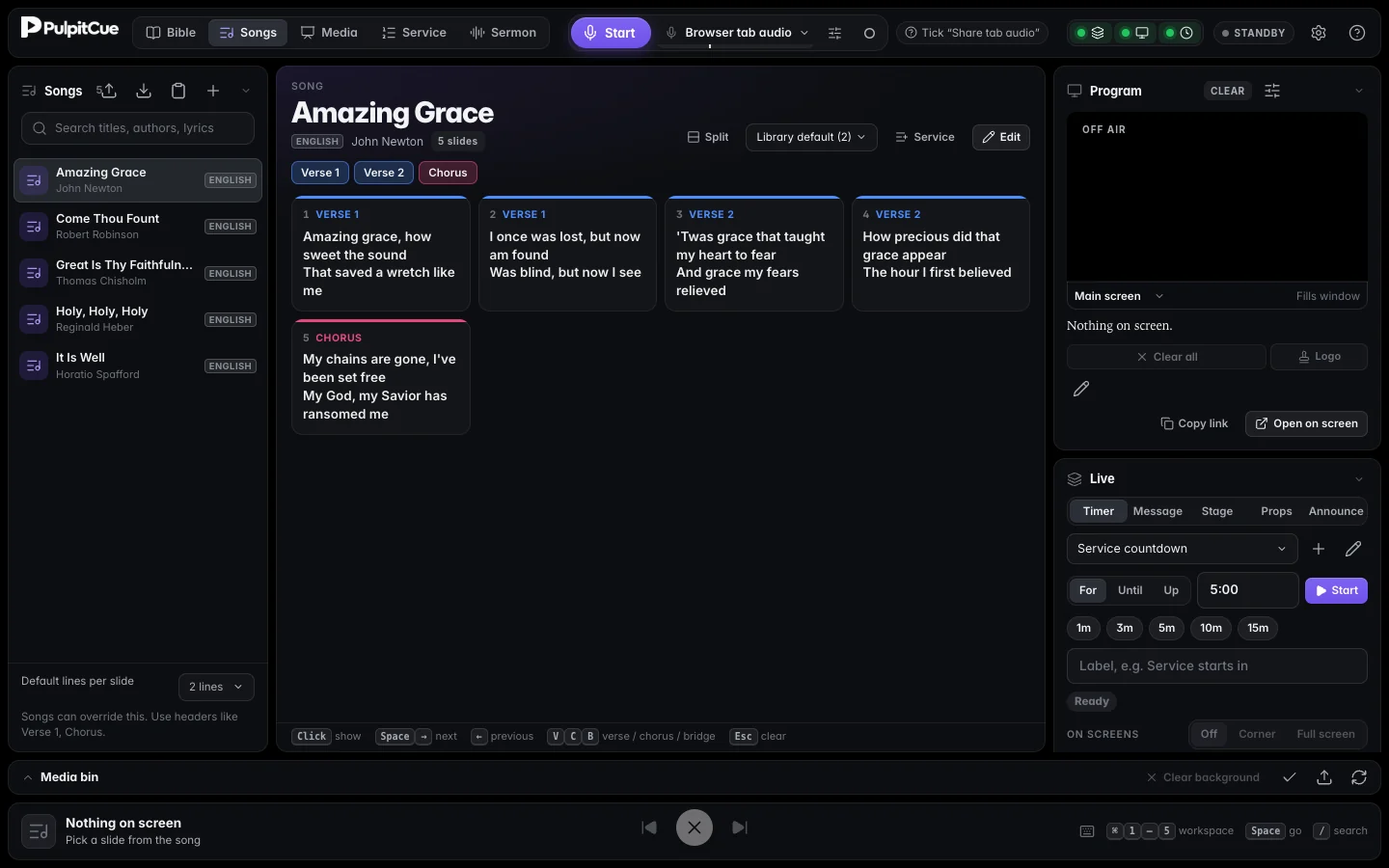 Songs: the library on the left, the song’s slides in the middle.
Build your library
Write a song
Click + in the library to write a song, or Edit on an existing one. The editor counts the slides as you type.
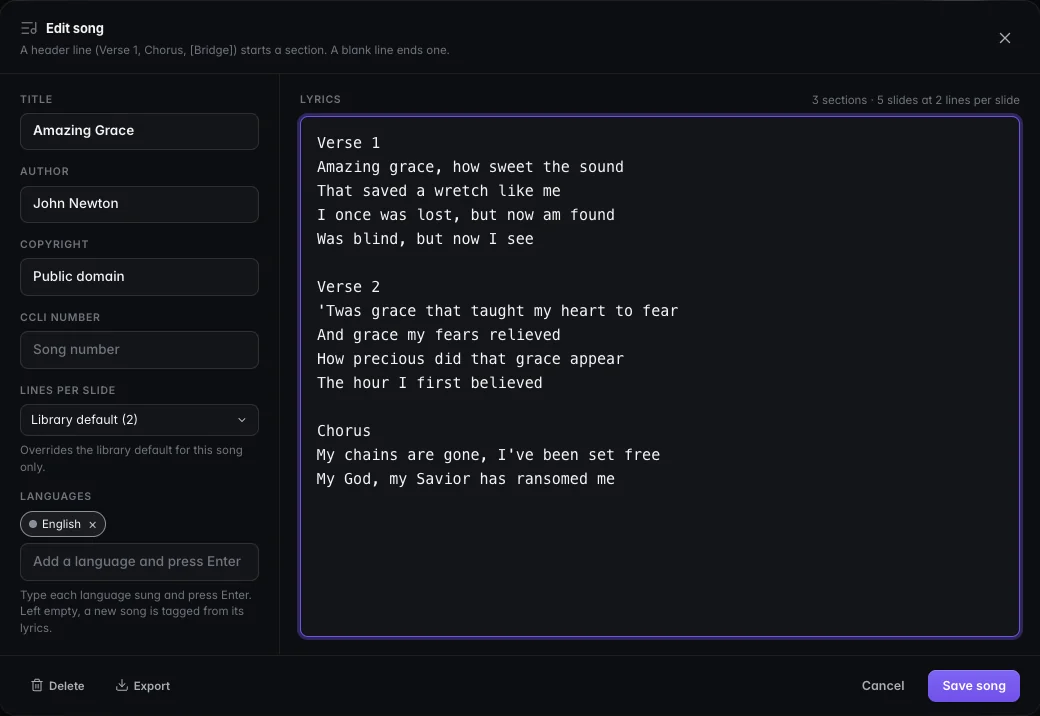 The song editor.
Lyrics are plain text. A header line starts a section and a blank line ends one:
Verse 1
Amazing grace how sweet the sound
That saved a wretch like me

[Chorus]
My chains are gone
I've been set free
Headers can be Verse 1, Chorus, Pre-Chorus, Bridge, Tag, or anything in [brackets].
Add a song from the clipboard
Copy the lyrics from anywhere, then press the clipboard button in the library, or just paste (⌘V) while you are in Songs. The song editor opens already filled in. The first line becomes the title when it stands apart from the lyrics (a blank line or a section header follows). Lines such as Title:, Author: and CCLI are honoured, and SongSelect footers are removed. Nothing is saved until you press Save song.
Import files
Press the upload button and choose one or more .txt files. PulpitCue understands:
- Plain lyrics. The file name becomes the title.
- A title line at the top, followed by a blank line.
- Header lines such as
Title:,Author:,Copyright:andCCLI:. - CCLI SongSelect text exports. Title, writers, copyright and CCLI number are read from the file and the licence footer is removed.
Songs whose title is already in the library are skipped, so re-importing a folder is safe. To move a whole library between computers use Backup and sharing.
Language tags
Each song can have language tags you type yourself: press Enter or comma to add one (up to eight, any wording: Twi, Ga, Hausa, Spanish…). The library’s language filter shows exactly the tags in use, with counts, and the editor offers existing tags for one-click reuse. A new song saved with no tags is tagged from its words.
Find a song
The search box matches titles, authors and lyrics, and shows the matching lines, so you can find a song from the one line someone remembers. Press / anywhere in Songs to jump to it.
Lines per slide
- Library default. At the bottom of the library (2 lines to start).
- Per song. The menu beside Edit overrides the default for that song only. Changing it while the song is live keeps the screen on the same lyric.
Run a song
Click a slide to show it. Slides are colour-coded by section, and the section buttons above the grid jump straight to a verse, chorus or bridge.
| Key | Action |
|---|---|
Space or → | Next slide (the first slide if nothing is showing) |
← | Previous slide |
V C B P T E | Next verse, chorus, bridge, pre-chorus, tag, ending |
Esc | Clear the screen |
/ | Search songs |
The Service button on a song adds it to a service. Lyrics use each screen’s own song lyrics style: see Screens.
Split screen: lyrics with a slide
Show a slide, such as your bank details during the offering, together with the song lyrics. Click Split in the song view (or right-click a slide in Media and choose Show with song lyrics).
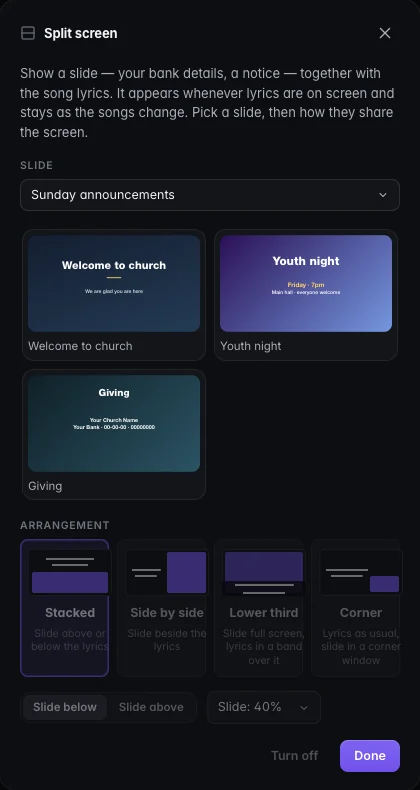 Choose the slide, then the arrangement.
| Arrangement | What it looks like |
|---|---|
| Stacked | The slide above or below the lyrics (a third to 60% of the height). |
| Side by side | The slide on the left or right, the lyrics beside it (a third to 60% of the width). |
| Lower third | The slide fills the screen and the lyrics run in a dark band across the bottom or top. |
| Corner | The lyrics as usual, with the slide in a small window in any corner. |
Each choice goes live at once, so Program shows how it looks. From then on the slide stays in place through every song until you press Turn off (or the Split button on Program, or Clear all). Pictures, text slides and designed slides can be held; videos cannot. Only full-screen outputs show it: lower thirds and stage monitors do not, and each output has a Split screen switch in Screens.
Tip
A wide slide (for example 1920×540) fills a stacked strip. A full 16:9 slide suits side by side, lower third and corner.
Still stuck?
Tell us what you were trying to do and we will help.