
Reference
Settings, memory and backups
Hands-free tuning, speech engine size, past services and backup files.
The gear in the top bar (or ⌘, on a Mac, Ctrl+, on Windows) opens Settings, for things you set once and rarely change, so the main panels keep their room.
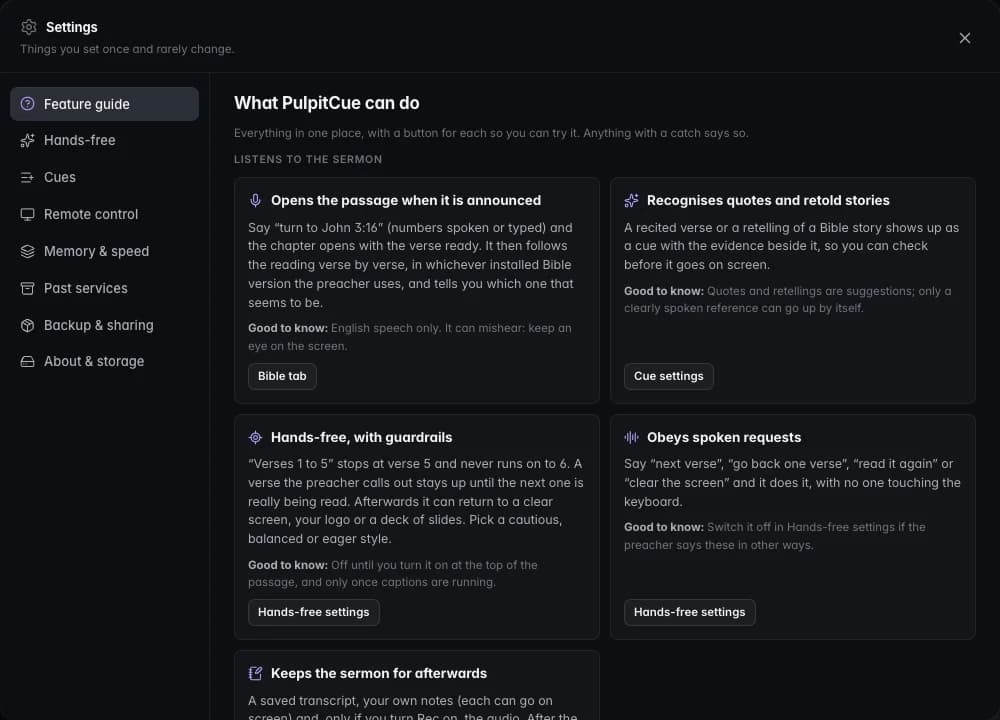 Settings → Feature guide: every capability in plain words, each with a button that opens the place to try it.
| Section | What it is for |
|---|---|
| Hands-free | How readily Scripture goes live by itself. See Hands-free. |
| Cues | How long cues stay. |
| Remote control | Turn on, pair and remove devices. See Remote control. |
| Memory & speed | What PulpitCue is using, and the speech engine size. |
| Backup & sharing | Export and import your library. |
| Licence & plans | Your trial or plan, and which computers may use it. |
| About & storage | Version, data folder, free disk space, Screens and the setup guide. |
| Feature guide | Every capability in plain words, each with a “Good to know” catch and a button that opens the place to try it. |
Saved sermons are not here: they are in the Sermon workspace, under Past services.
Cues
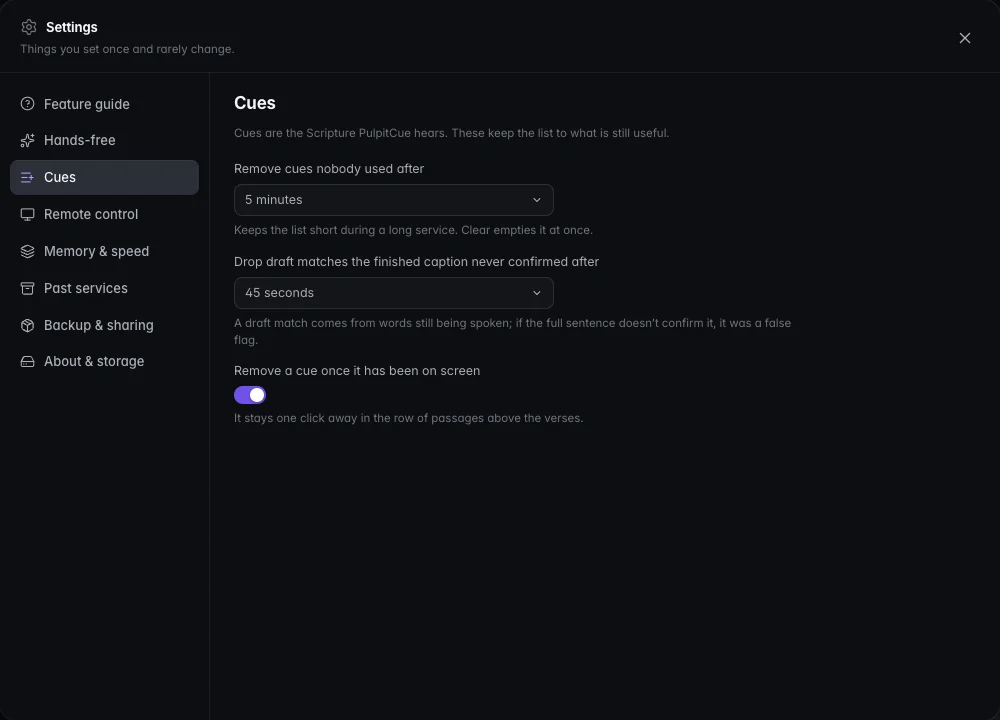 Settings → Cues.
Cues clear themselves so the list holds only what is still useful. You can change two timings: how long cues are kept (1 minute to 30 minutes, or Until I clear them) and how long a cue from an early draft waits for the finished sentence to confirm it (20 seconds to 3 minutes). Showing a passage always removes the cues it covers, and you can dismiss any cue by hand.
Memory and speed
PulpitCue loads its AI models only when they are needed and frees them afterwards, so the computer keeps its memory for other work between services. This page shows what PulpitCue is using right now, how much memory the computer has and which models are loaded.
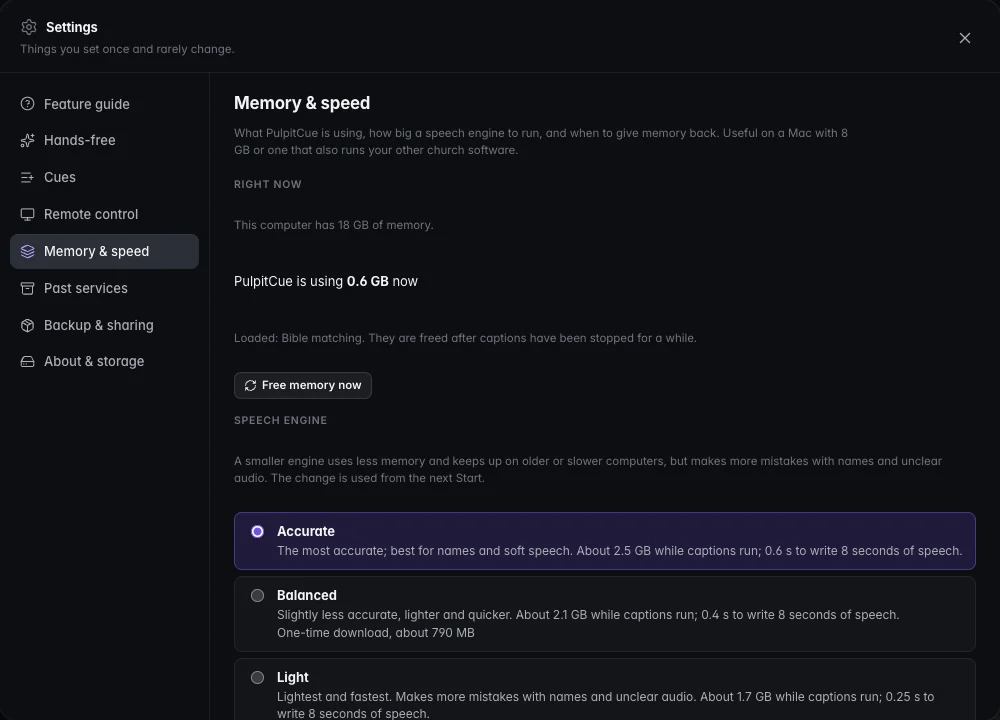 Settings → Memory & speed.
Speech engine size
A smaller engine uses less memory and writes faster, but makes more mistakes with names and unclear audio. The change is used from the next Start and cannot be changed while captions run. An engine that is not on the computer is downloaded the first time you choose it.
| Engine | Download | On a Mac’s GPU | On a processor alone (most Windows laptops) |
|---|---|---|---|
| Accurate | 1.5 GB | about 2.5 GB, 0.6 s per 8 s of speech | about 3.5 GB, 2.4 s |
| Balanced | 0.8 GB | about 2.1 GB, 0.4 s | about 2.0 GB, 1.3 s |
| Light | 0.3 GB | about 1.7 GB, 0.25 s | about 1.1 GB, 0.6 s |
These were measured on an Apple-silicon Mac. A typical laptop processor is slower, so leave it room.
Apple speech recognition (Mac only)
A switch on this page swaps the downloaded engine for the on-device speech recognition built into macOS, the same one Dictation and Voice Memos use. It needs no model download and uses much less memory, but may make more mistakes with names. Audio stays on the Mac. The first time you switch it on, macOS asks for Speech Recognition permission, and English must be downloaded under System Settings › Keyboard › Dictation. Switch it off to go back to the downloaded engine. Windows always uses the downloaded engine.
What suits the computer
- A Mac defaults to Accurate.
- A computer without a suitable graphics card writes each phrase several times slower and keeps the model in ordinary memory, so it defaults to Light below 12 GB of memory and Balanced from 12 GB up. First-run setup then downloads only that engine.
- Settings says when another size would suit the computer better.
- On a processor, speech recognition uses at most four threads, leaving cores free for the screens, OBS and the operator.
Giving memory back
| Model | Memory while loaded | Freed after |
|---|---|---|
| Speech recognition | 1.7 to 2.5 GB depending on engine | Captions stopped for a while (choose 1, 3, 10 or 30 minutes; the default is 10 on a Mac and 3 on a processor) |
| Bible matching | about 350 MB | Same |
| Sermon notes | about 7 GB | As soon as the notes are saved, and always when captions start |
They load again in a few seconds when you press Start. Free memory now gives the memory back immediately. The speech and Bible-matching models are never freed while captions run, and the notes model is never loaded while they run.
Backup and sharing
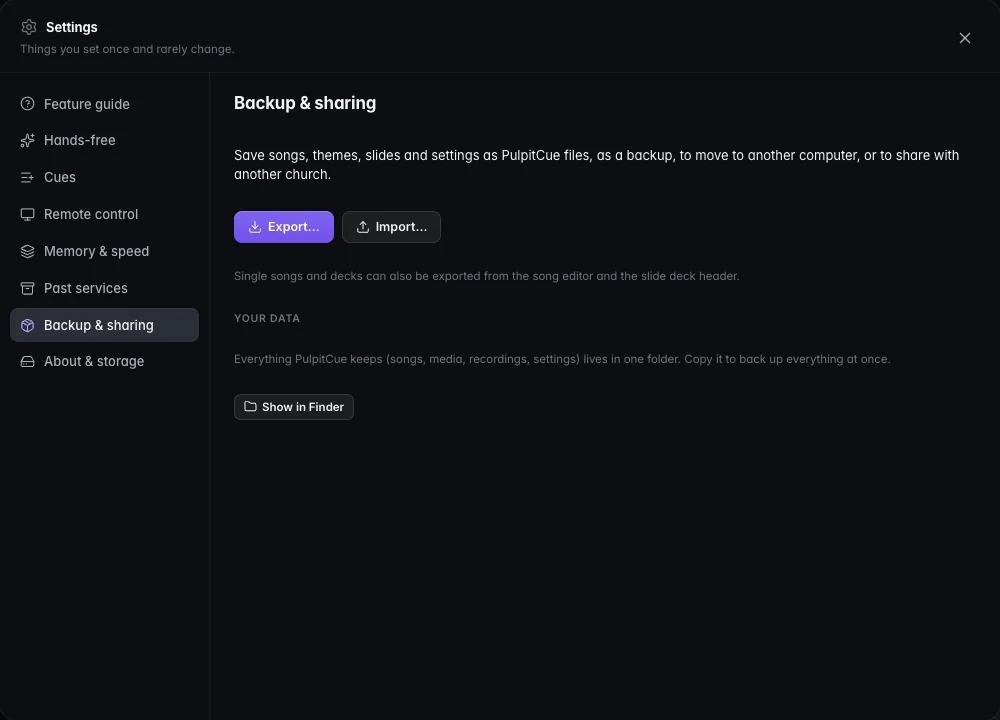 Settings → Backup & sharing.
Export a copy of your library to keep safe or to move to another computer or church. Each file is a single zip container.
| File | Contains |
|---|---|
.pcsongs | Songs |
.pcthemes | Themes |
.pcdecks | Slide decks and announcement loops |
.pclibrary | Background pictures and videos |
.pcsetup | Screens, props, messages, timers, hands-free and audio-level settings |
.pcpack | Any mix of the above |
- A single song can be exported from the song editor, and a single deck from Media. The Songs and Media libraries also have their own Import and Export buttons.
- Before anything is added, the import shows what is in the file. Items that already exist (matched by title) can be skipped, replaced or kept alongside.
- Everything read back in goes through the same checks as typing it in. Which physical monitor an output shows on is never exported or replaced.
To back up everything, including saved sermons and recordings, copy the PulpitCue data folder (see Where your files live).
About and storage
Shows the version, where your data is stored, and how much disk space is free, with shortcuts to Screens… and the Setup guide…. PulpitCue runs entirely on this computer: speech, Bible matching and notes never leave it.
Still stuck?
Tell us what you were trying to do and we will help.