
Run the service
Slides, loops and backgrounds
Presentations, announcement loops, your own designed slides and the media bin.
The Media workspace holds everything that is not a song or a verse: sermon slides, notices, pictures, video and your own designed slides. It also controls backgrounds through the media bin.
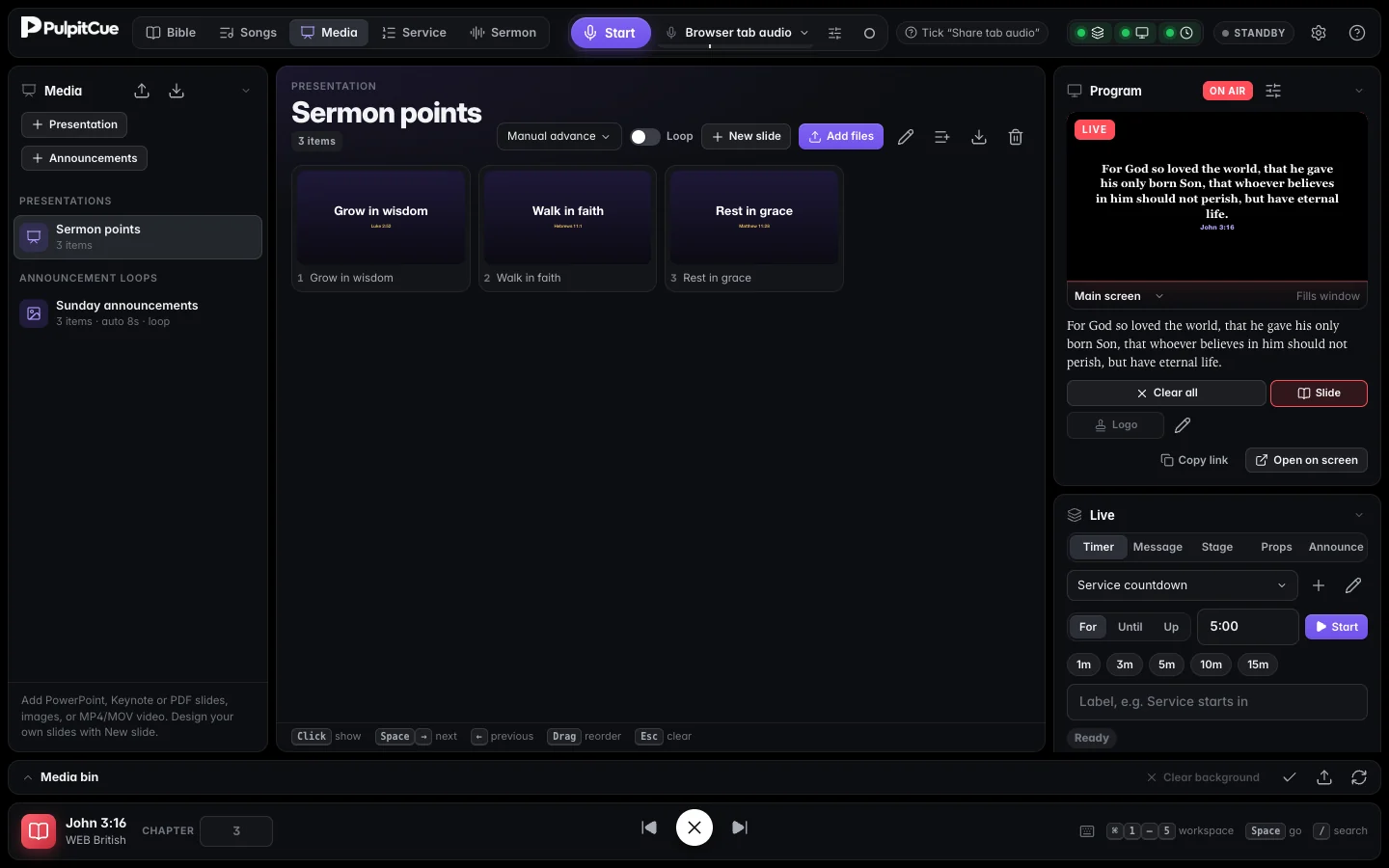 The Media workspace with a presentation open.
Two kinds of collection
| Use for | Starts as | |
|---|---|---|
| Presentation | Sermon slides, notices, liturgy | Manual advance |
| Announcement loop | Notices, pictures and videos before and after the service | Auto every 8 seconds, looping |
Create one with + Presentation or + Announcements.
Add slides
Click Add files, or drag files from Finder or File Explorer onto the slide area. You can add several at once.
- PDF. Each page becomes a slide. (From Google Slides or Canva, download as PDF.)
- PowerPoint and Keynote.
.pptx,.ppt,.keyand.odpare converted automatically. This needs the free LibreOffice (recommended; it converts silently) or, on a Mac, Apple Keynote. Keynote.keyfiles need Keynote. Without either, export the deck as PDF. - Pictures. PNG, JPEG, GIF (animated GIFs keep moving) and WebP. Very large images are scaled down to 4K.
- Video. MP4, MOV and WebM. With auto-advance on, the next item starts when the video ends.
Drag tiles to reorder them. Hover a tile and click × to remove it. The pencil renames a collection and the bin deletes it. Right-click a slide (or use its gear) for Move to, Copy to or Duplicate, or drag it onto another presentation in the list (hold Option/Alt to copy).
Run a presentation or loop
Click a tile to put it on screen. Space or → goes to the next, ← to the previous, Esc clears.
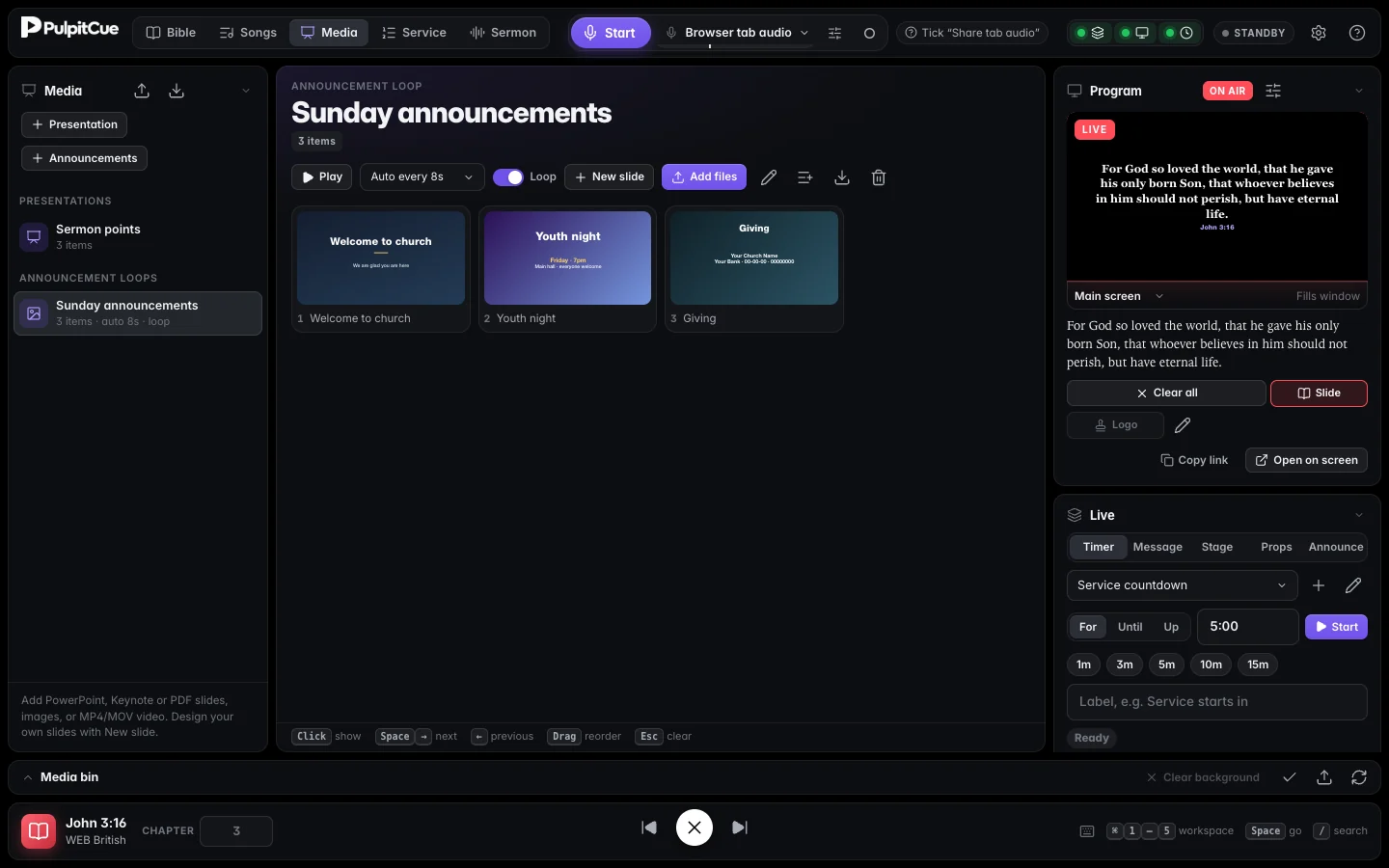 An announcement loop: Auto every 8 s, Loop on.
- Auto-advance. Choose Manual or Auto every 5 to 60 seconds. When a collection with auto-advance goes live it starts playing. Pause and Resume control it without taking it off screen.
- Loop. After the last slide, go back to the first. Otherwise it stops on the last.
- The stage monitor shows what comes next, with a thumbnail.
Leave some slides out of a loop
Looping through a whole presentation but want to skip a few slides this week? Right-click a slide (or use its gear menu) and choose Leave out of the loop. The same menu item puts it back.
- The slide is skipped by auto-advance, by a deck’s loop and by the announcement layer, but it stays in the deck: clicking it, or stepping to it with the arrow keys, still shows it.
- Nothing is marked until a slide is left out. Then it is dimmed and tagged OUT, the header counts them, and Include all puts them all back.
- The next-slide preview on the stage monitor follows what auto-advance will really show.
Design your own slides
Click New slide and pick a layout.
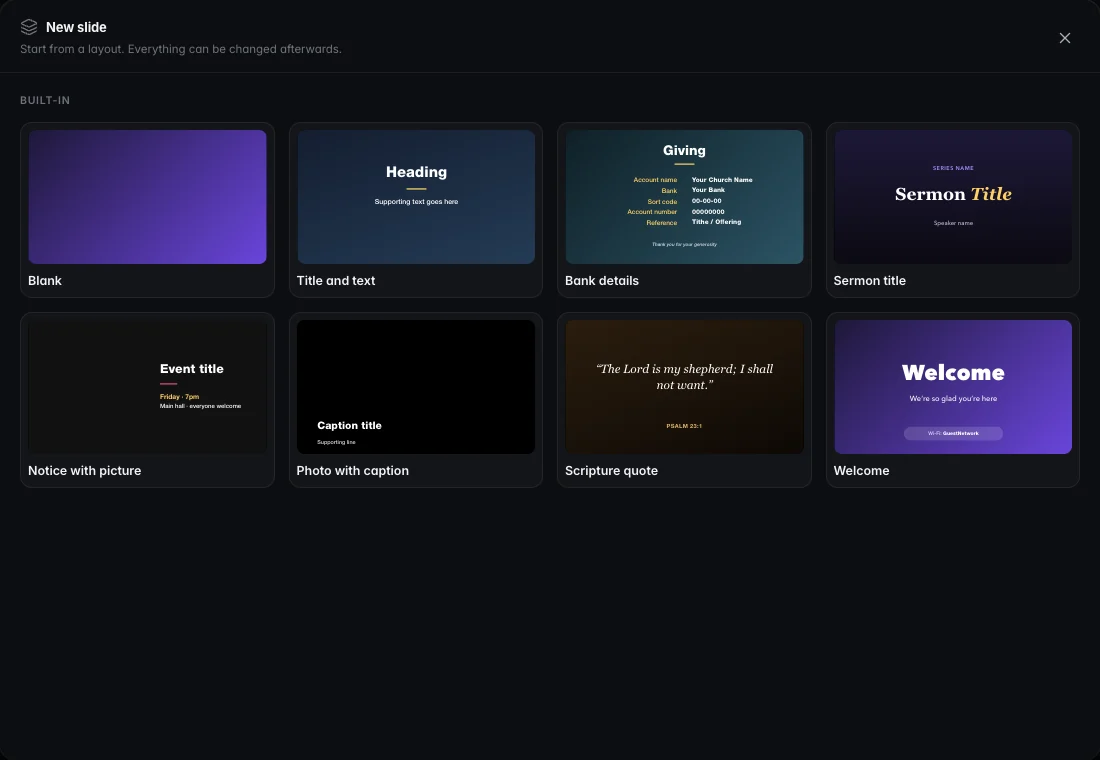 Start from a layout. Templates you save yourself appear first.
The editor opens full screen, with the real 1920×1080 slide as its canvas.
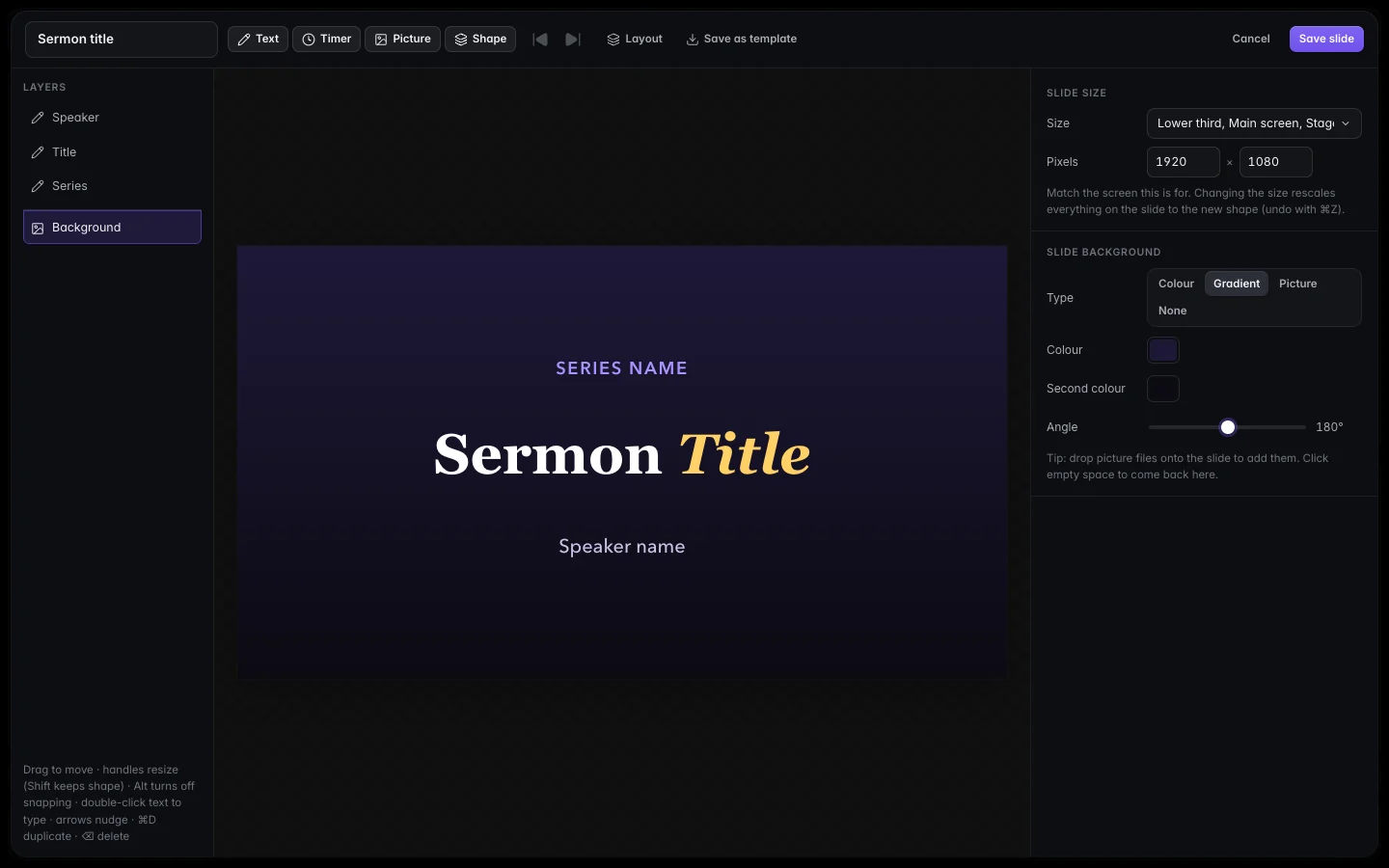 The slide designer.
- Click to select, drag to move (guides appear when something lines up), drag the handles to resize. Hold
Altto move freely andShiftto keep a shape or move in a straight line. - Double-click text to type. Highlight words and change the font, size, weight, colour, italic or underline to style just those words, so one heading can mix several fonts.
- The toolbar adds Text, Timer, Picture and Shape. Layout moves your text into another layout. Save as template keeps the design for future slides.
- Layers (left) lists everything front to back; hide or lock any item. The inspector (right) has exact position, size, rotation and opacity, plus settings for the selected item.
- Slide size. A slide can be any shape: portrait for a vertical screen, or an exact size for an LED wall.
- Background. A colour, a gradient (two colours and an angle) or a picture, with optional darkening and blur to keep text readable. Click empty space to edit it.
- Pictures. Choose from pictures you have uploaded, or drag picture files onto the slide.
Keys: arrows nudge (Shift = 10 px), ⌘Z and ⇧⌘Z undo and redo, ⌘D duplicates, ⌘C and ⌘V copy and paste, Delete removes, ⌘S saves.
Designed slides are drawn live on every screen, so text stays sharp at any size. If a slide is on screen when you save, the change appears straight away.
The media bin and backgrounds
The media bin above the bottom bar holds backgrounds. It is closed until you open it.
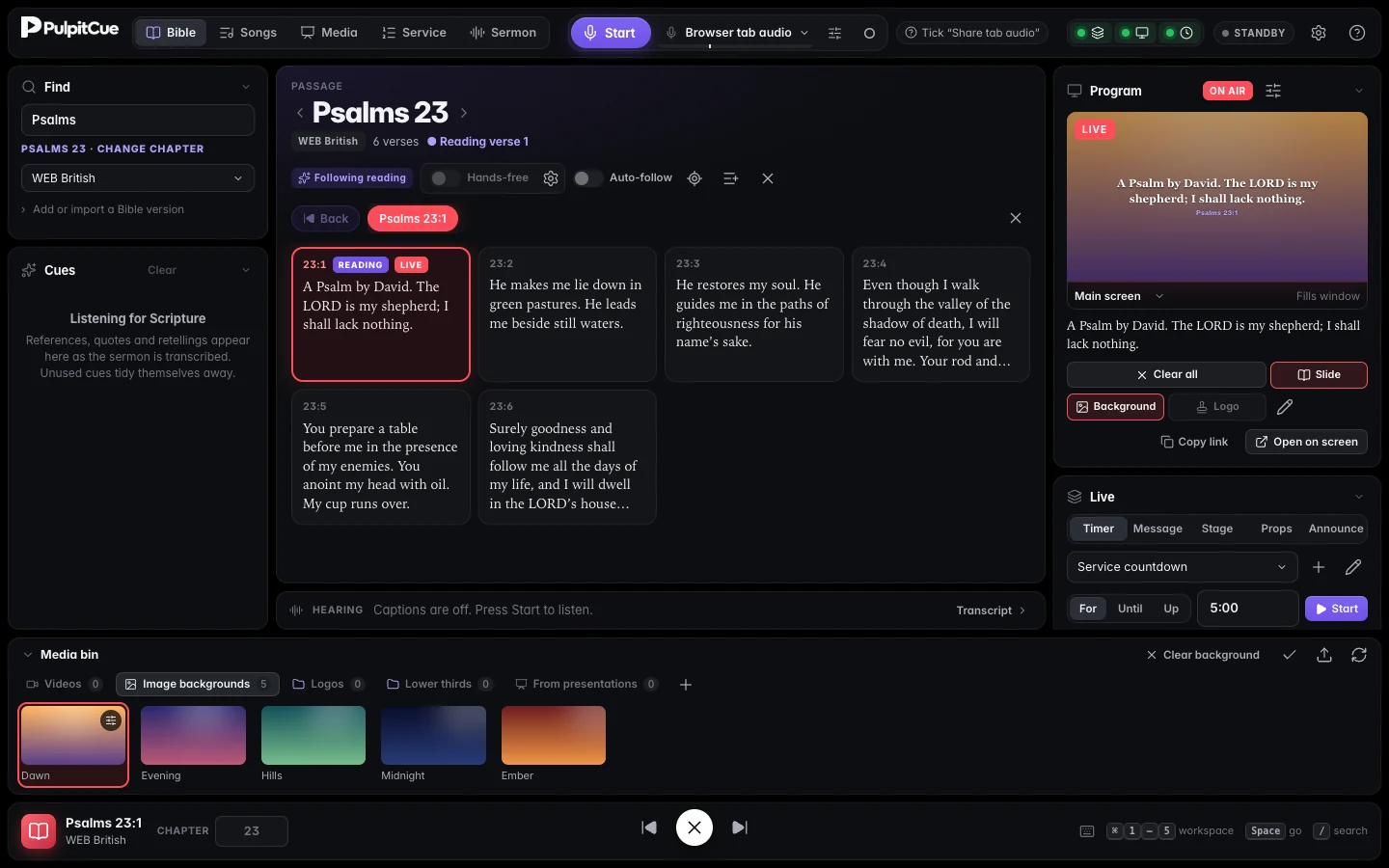 The media bin. Click a background to put it behind whatever is on screen.
- Tabs: Videos, Image backgrounds, Logos, Lower thirds and From presentations, plus folders you create with +.
- Click a tile to put it up as the background; Clear background removes it. A single click on another tile switches straight to it.
- Drag the line above the bin to make it taller or shorter. Select several tiles with
⌘/CtrlorShift-click, then Move to… or Delete them together.
Backgrounds step aside for media
Whenever a slide, picture or video is on the Media layer, the background is taken off screen on every screen and in the dashboard, and the tile shows held rather than live. When the media goes (cleared, or replaced by a verse or song), the background comes back, without flashing black. This stops a video background playing underneath a full-screen slide.
Video as a background, or as a video
Hover a video in the bin to see two buttons.
- Background loops it silently behind lyrics and Scripture. Clicking the tile does the same.
- Video plays it once with its sound, like a video slide. It replaces what is on screen, the bin header shows Pause/Play, restart and Stop, and the Media layer button clears it (
F3).
The right-click menu has the same two choices. If a video is playing and you pick a background, the video ends and the background shows.
Motion for still pictures
Right-click a picture (or use its gear) and choose a Motion on screen: Drift (a slow push in and across, good for photos), Breathe (a gentle zoom in and out), Flow (the colours slowly swirl, good for gradients) or Still. The motion is drawn live from the picture, so no video file is made, it is light on the computer, and every screen and the Program preview stay in step.
A background for Bible verses
Right-click a picture or video in the bin (or use its gear) and choose Use for Bible verses. From then on, whenever a verse goes on screen with no other background up, that background comes up behind it, and it goes away when the screen is cleared. The next verse brings it back (a video restarts each time).
- It does not touch songs or slides.
- A background you put up by hand still wins while it is on; the verse background returns when you clear it.
- The tile is tagged VERSES. Verse background ✕ in the bin header drops the choice. It is remembered between launches.
Videos stay in step
Every video on every screen is started at one scheduled moment so they begin on the same frame together. After that it is left alone and never sped up or slowed down, because that makes video stutter. A screen only restarts a video if it has really fallen out of step. Smooth picture matters more than perfect sync, especially on a screen connected directly by HDMI.
Video sound
Video sound plays from the screen’s own page (for example the main screen) and is not sent over NDI. Videos used as backgrounds are silent. If the computer blocks sound until someone interacts with the page, PulpitCue shows a notice; click once on that screen to allow it.
Still stuck?
Tell us what you were trying to do and we will help.